Set up single sign-on
Verify your email domain, connect SAML or OpenID Connect, test it, then require SSO and let people join on their own.
What you'll get
- A verified email domain
- A tested SSO connection
- Sign-in through your identity provider, required or optional
Open Single sign-on
Single sign-on is part of the Enterprise plan. It works while the organization is on that plan. Only the owner and admins can set it up.
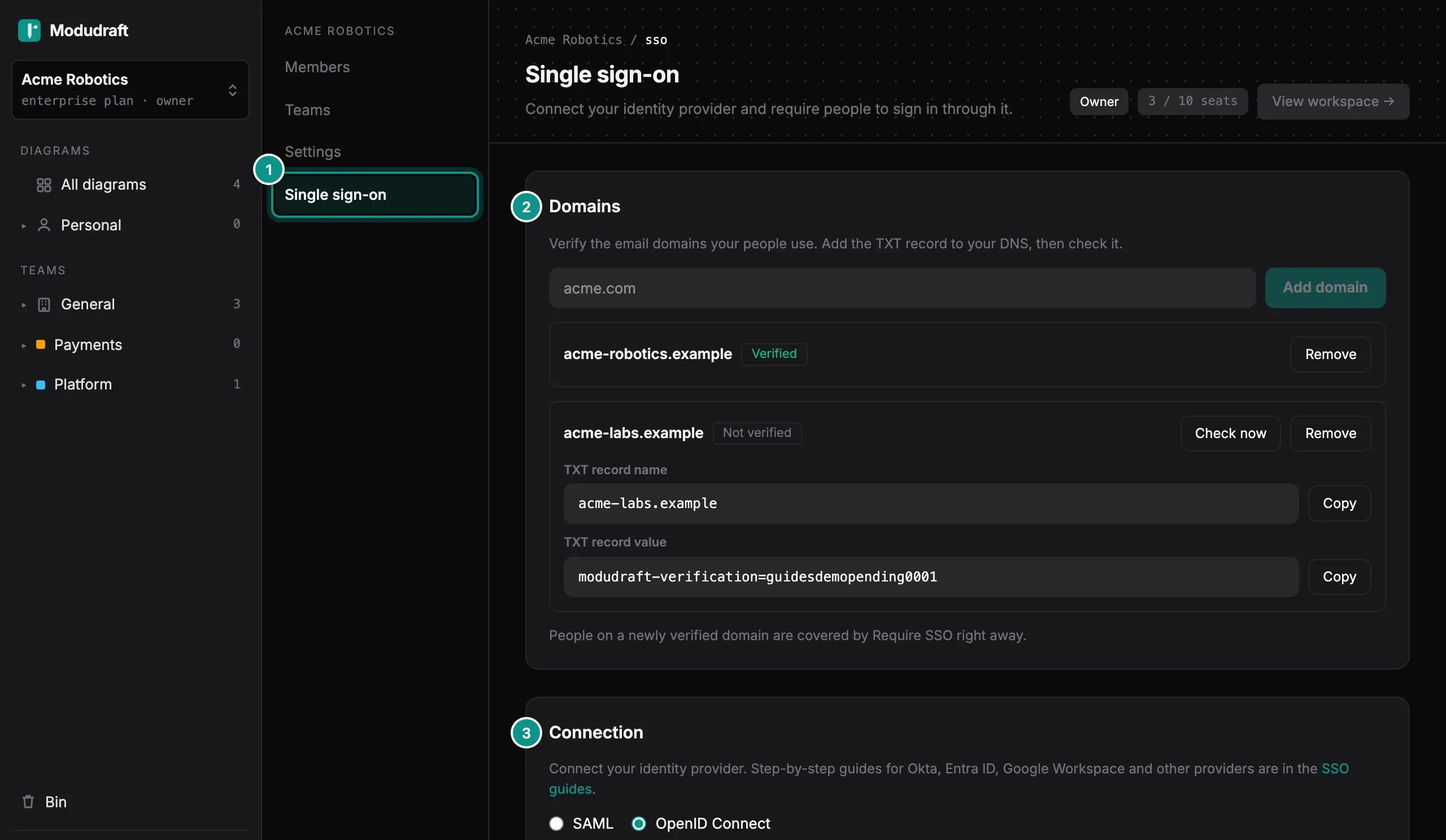
In the dashboard, open the organization switcher at the top of the sidebar and choose Organization settings. Then click Single sign-on (1). You set it up in three cards: Domains (2), Connection (3) and Settings.
Verify your domain
First, prove that you own the email domain your people use. Type it in the domain field (1) and click Add domain. Public email domains such as gmail.com cannot be added.
Modudraft then shows a TXT record: a name, which is the domain itself, and a value (2) of the form modudraft-verification=<token>. Add that record to your domain’s DNS, then click Check now. Once Modudraft finds the record, the domain shows Verified (3). DNS changes can take a while to spread, so check again later if it is not found yet.
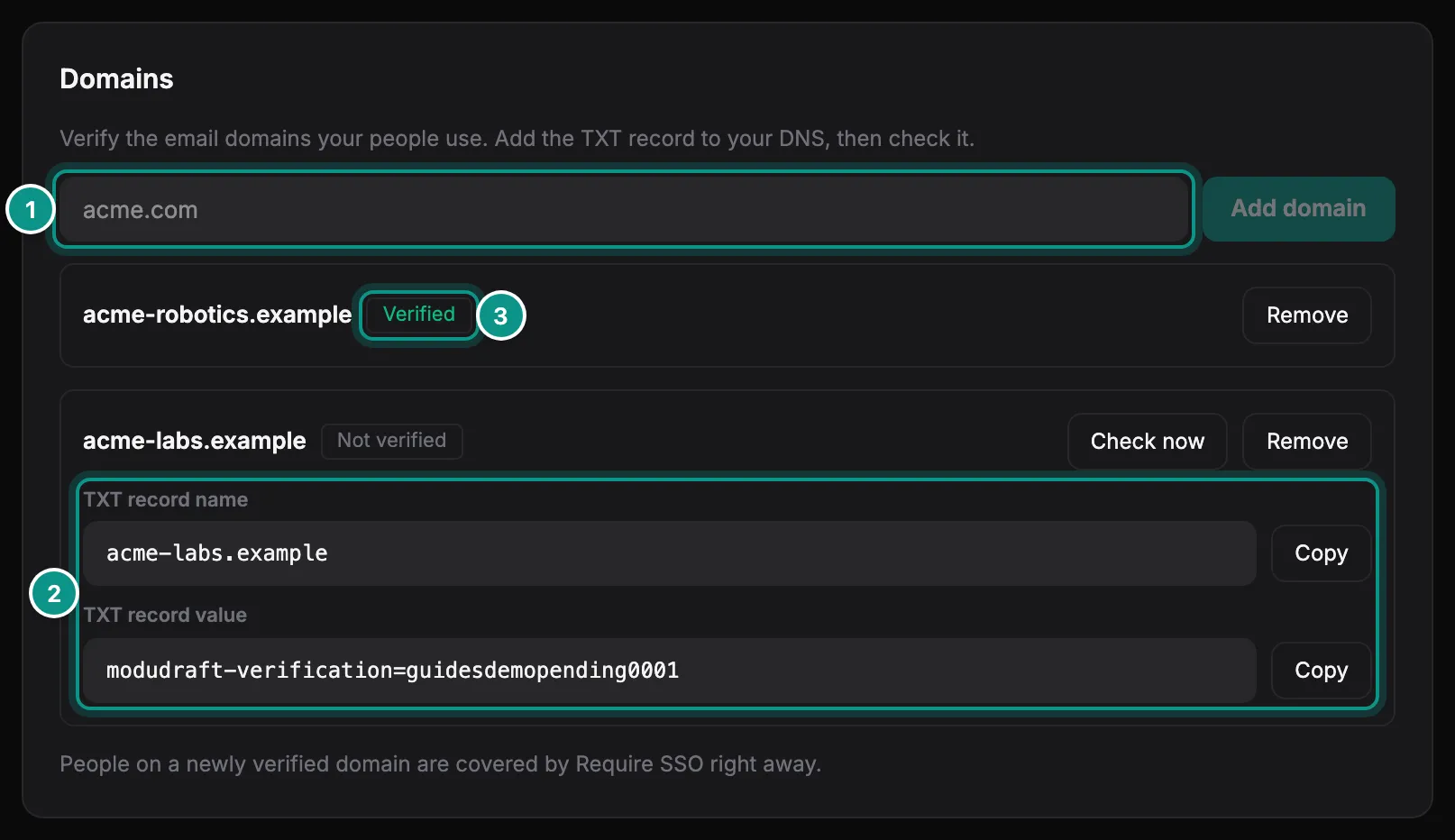
You can verify more than one domain. Only people whose email is on a verified domain can sign in with your SSO.
Connect your identity provider
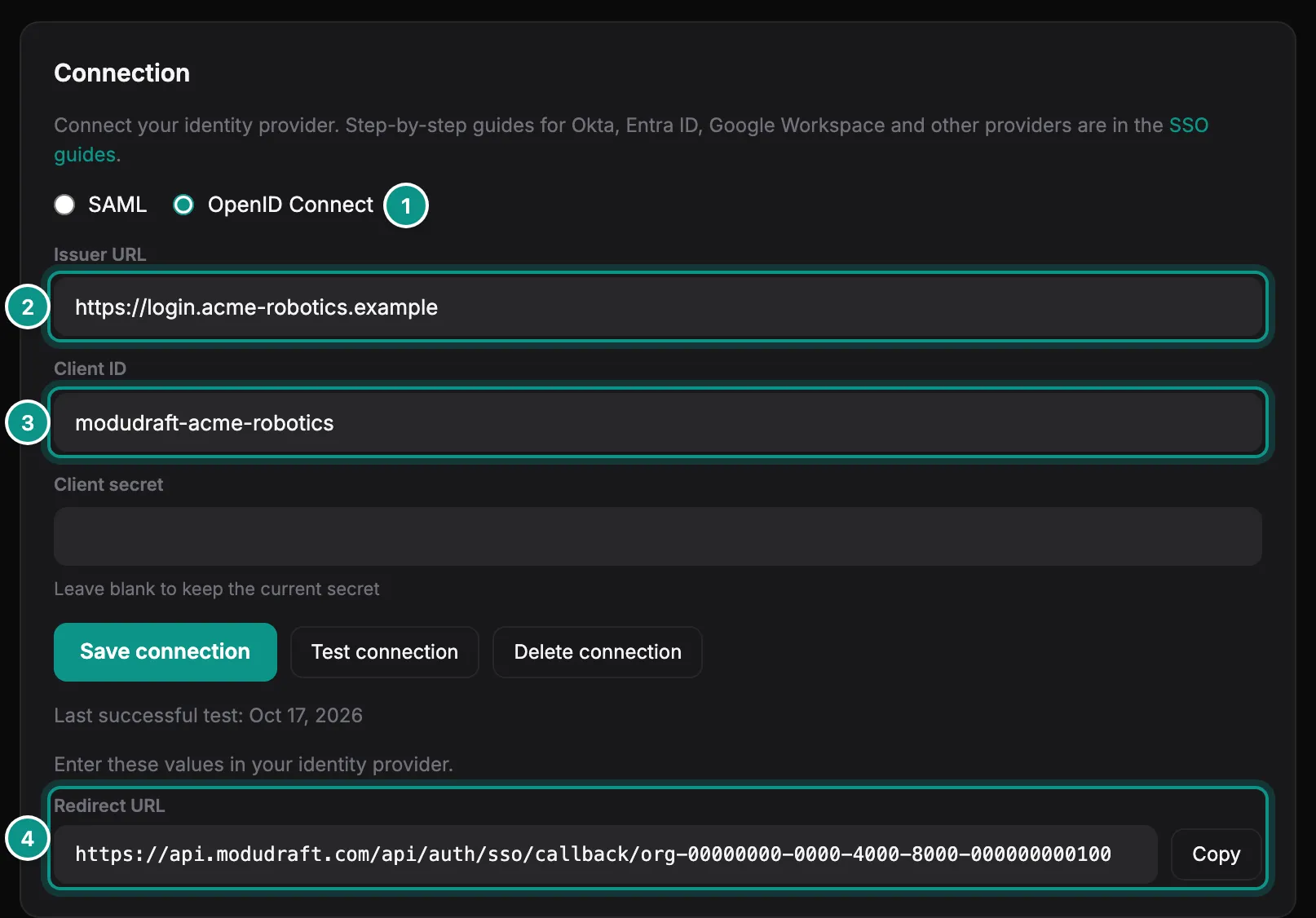
In Connection, choose SAML or OpenID Connect (1).
- For SAML, give the metadata URL from your identity provider, or paste its metadata XML.
- For OpenID Connect, enter the issuer URL (2), the client ID (3) and the client secret.
Click Save connection. Modudraft then shows the values your identity provider needs. For OpenID Connect, that is the redirect URL (4). For SAML, it is the ACS URL and the entity ID. Copy them into your identity provider.
The single sign-on docs have step-by-step setups for Okta, Entra ID, Google Workspace and other providers.
Test the connection
Click Test connection (1). Modudraft sends you to your identity provider to sign in, then back to this page. The card shows the date of the last successful test (2).

Require SSO
In Settings, tick Require SSO to make your identity provider the only way in. You can turn it on once you have a connection, a verified domain and a successful test.
Before anything changes, Modudraft asks you to confirm (1). It tells you how many people it affects (2). That is everyone with an email on your verified domains, member or not, except the owner. Sessions they started another way end, and from then on they can sign in only with SSO. Their API keys keep working.
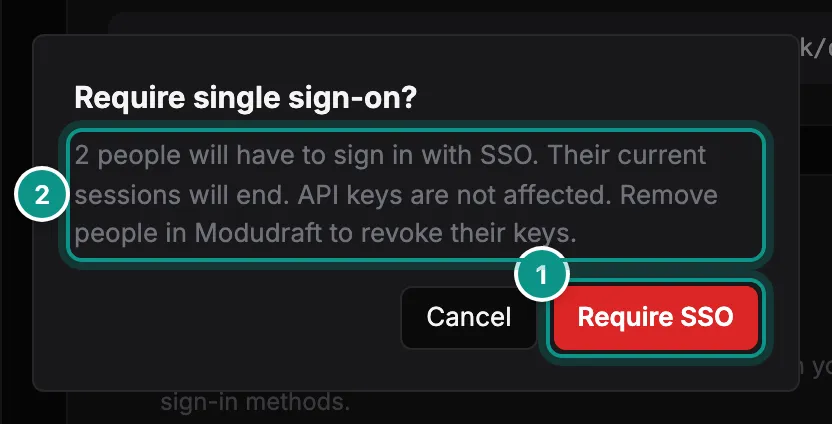
The organization’s owner is never covered and keeps their other ways to sign in. When the owner signs in another way, Modudraft emails the organization’s admins.
Let people join on their own
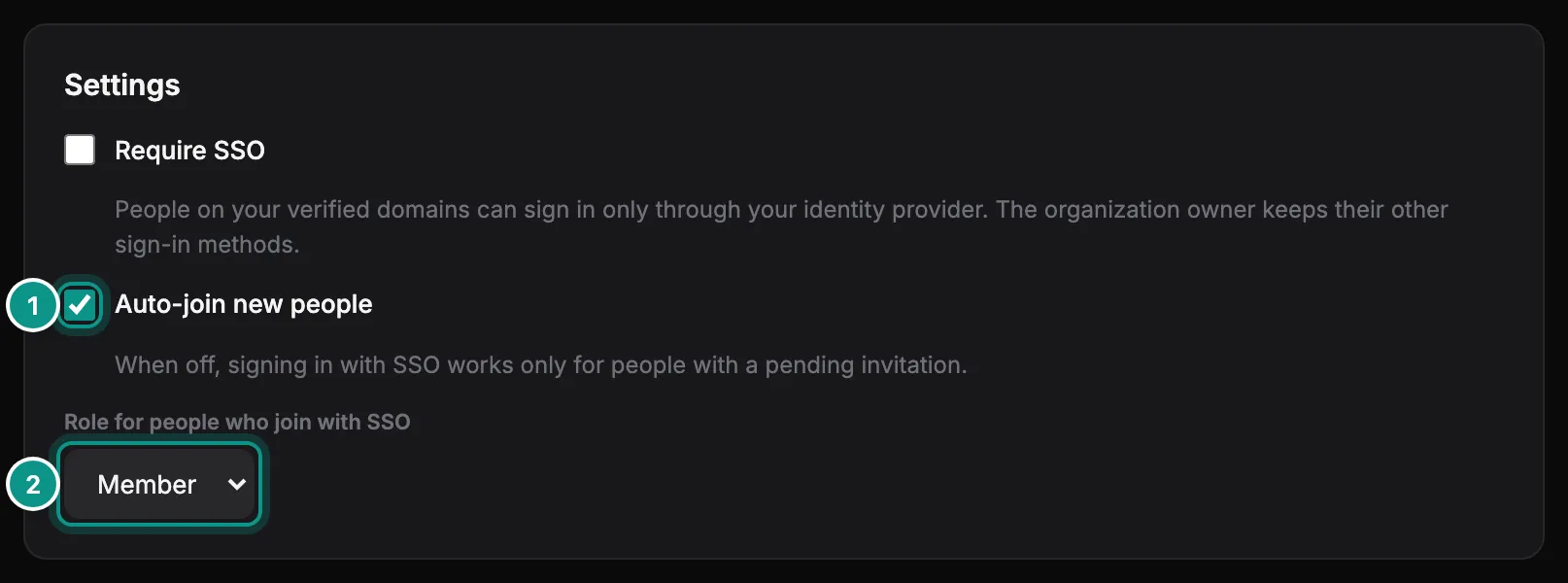
Auto-join new people (1) is on by default. Someone on a verified domain who has no Modudraft account can then sign in with SSO and join the organization right away. Someone who already has an account is asked to join instead. When auto-join is off, people who are not members yet need a pending invite to join through SSO.
Pick the role for people who join with SSO (2): Member or Admin. Only the owner can choose Admin.
Each new person takes a seat. When the organization has no free seats, they cannot join until one frees up.