Draw sequence diagrams
Show how a request moves through your components, with messages, alt and loop blocks, and export to Mermaid or PlantUML.
What you'll get
- A sequence linked to your components
- Alt and loop blocks
- A Mermaid or PlantUML export
Open the Sequence tab
Click Sequence in the tab bar. The left panel lists the diagram’s sequences, with the number of messages in each. Click one to open it.
To start a new one, click New sequence. Give it a name, then pick the components it passes through, in order.
Add participants and messages
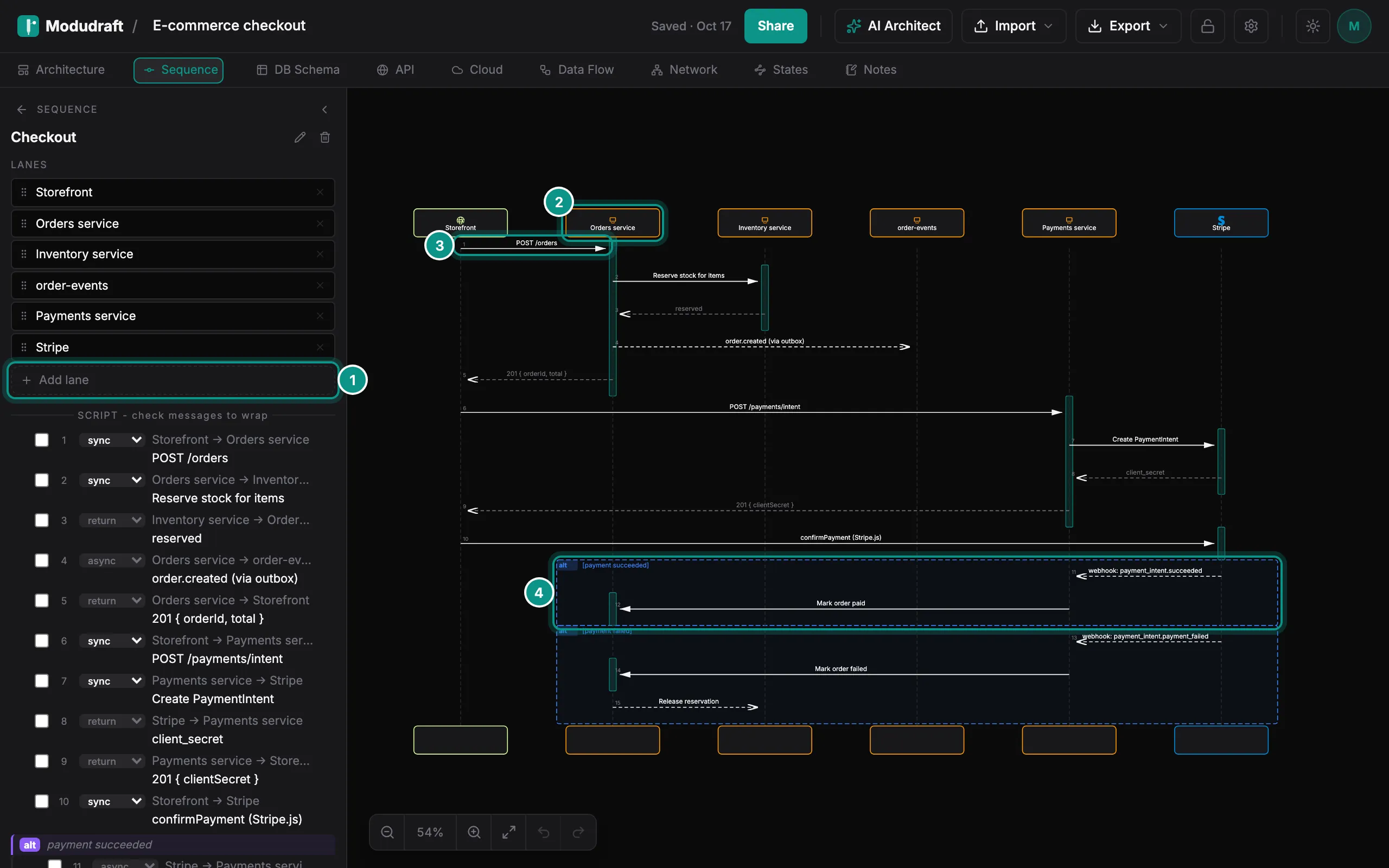
Each lane in a sequence is a component from your Architecture tab. Rename a component there and its lane follows. To add a lane, click Add lane (1) and pick a component. Drag the lanes in the list to change their order.
The canvas draws a box for each lane, such as Orders service (2), with a dashed line below it.
A message is an arrow from one lane to another (3). To add one, drag from one dashed line to another on the canvas. You can also click Add message at the end of the script in the left panel.
Add alt and loop blocks
A block groups messages under a condition. Here, an alt block (4) shows what happens when the payment succeeds, and a second one shows what happens when it fails.
To add a block, tick the messages in the script. Then choose its kind:
- loop repeats while a condition holds.
- alt shows if and else branches.
- opt marks an optional part.
- par runs messages in parallel.
Type a condition if you want one, then click Add fragment. To change or delete a block later, point at it on the canvas and use the buttons in its corner.
Edit a message
The script in the left panel lists every message in order. Each row has its type (1) and its route and label (2).
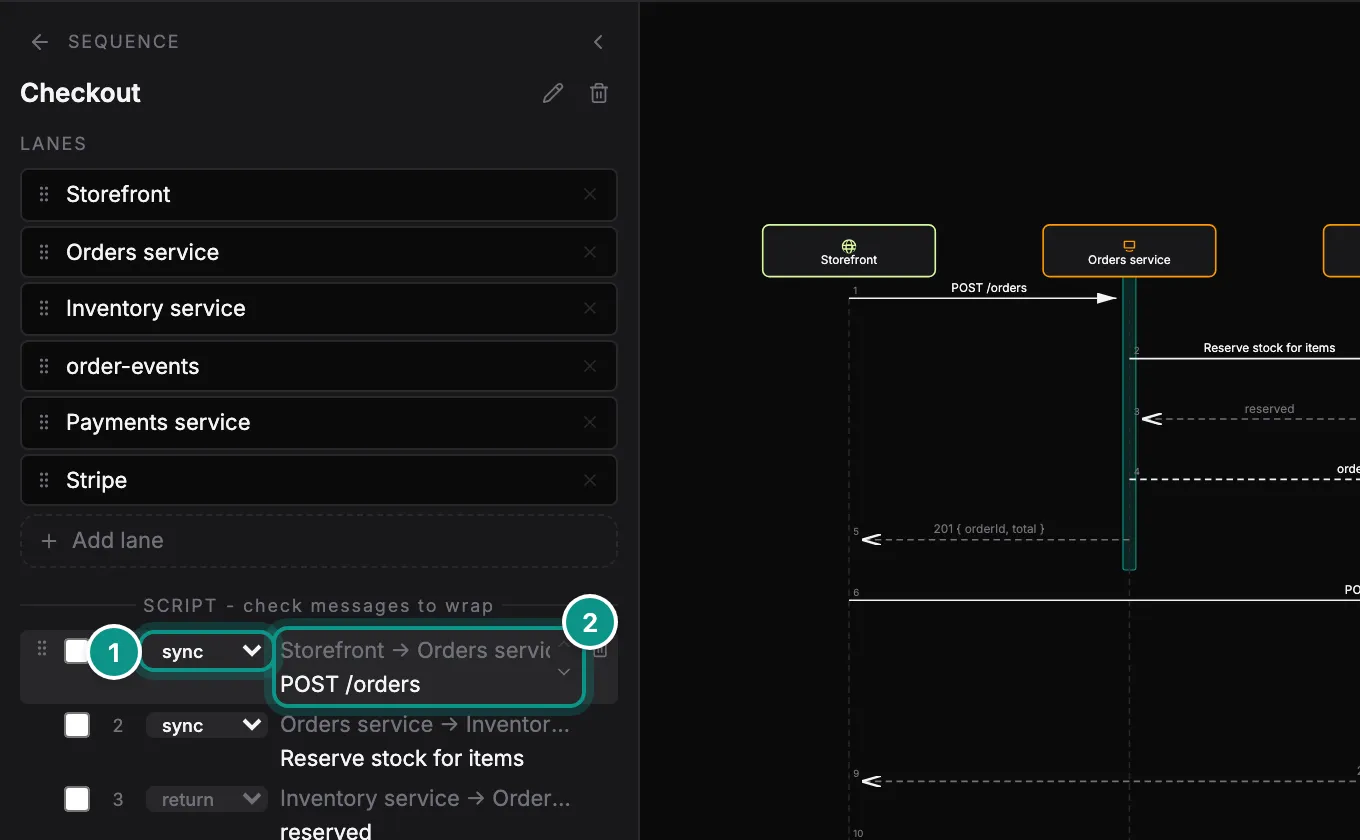
- Pick a type in the dropdown: sync, async, return, create, destroy or note.
- Double-click a label to rename it, in the script or on the canvas.
- Drag a row to move the message. The arrow buttons on a row, and Alt with the up or down arrow key, move it too.
Export it
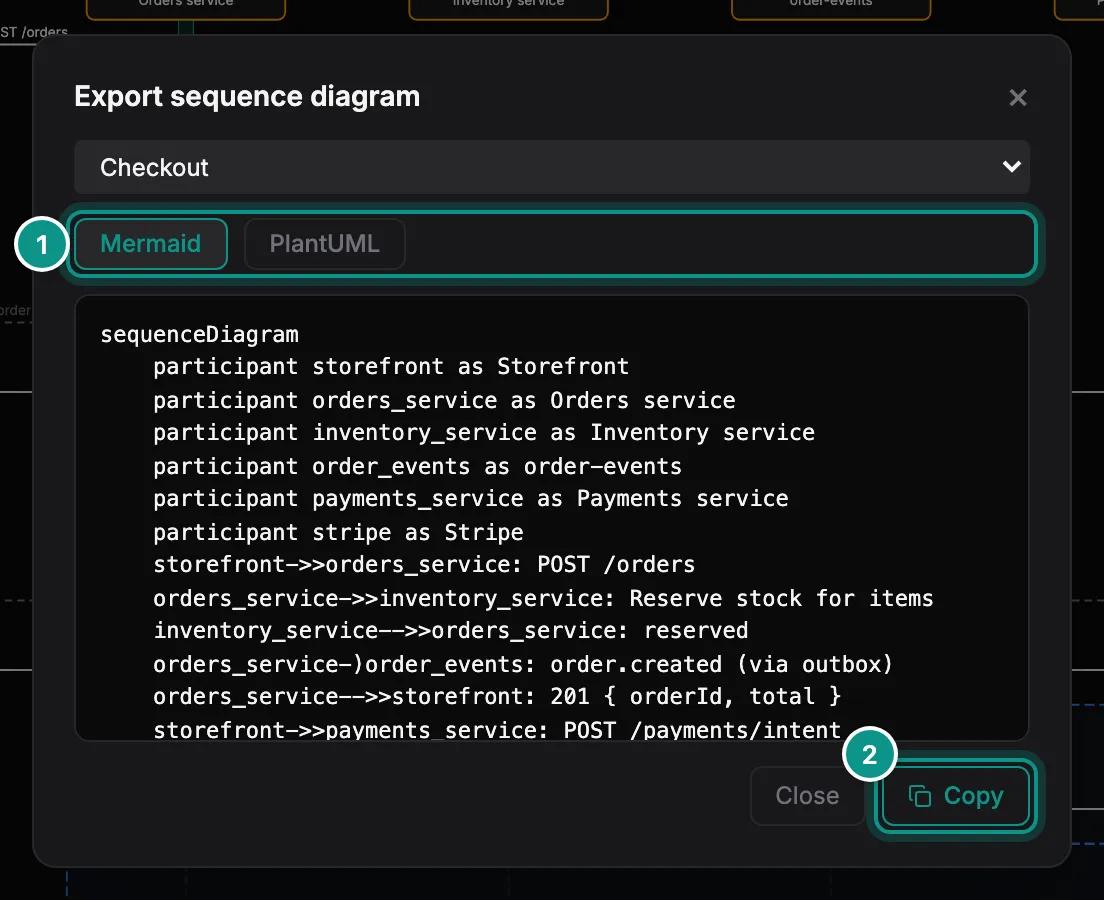
Open Export in the toolbar and, under This tab, choose Mermaid / PlantUML…. Pick the sequence, then choose Mermaid or PlantUML (1). Copy (2) puts the text on your clipboard, ready for a README, a wiki or a pull request.
Next, design the tables behind your components in the DB Schema guide.