Set up your team
Create an organization, invite people, give them roles, share diagrams with teams and keep an eye on seats.
What you'll get
- An organization with a shared workspace
- People invited with the right role
- Teams with their own diagrams
Create the organization
Team and Enterprise come with an organization, and we set them up with you for now. On app.modudraft.com/signup the Team and Enterprise cards say Contact us and email [email protected]. Tell us the organization’s name and how many seats you need. A Team organization has one team; an Enterprise organization can have as many as it needs.
We set up the organization on its plan, with its shared workspace (the sidebar lists it as General) and its first team, named after the organization. You are its owner. The plan belongs to the organization, and everyone in it is on the plan.
Invite people
In the dashboard, open the organization switcher at the top of the sidebar and choose Organization settings. Then go to Members. Click Invite member, type the person’s email (1), pick their role (2) and click Send invite (3). Modudraft emails them a link.

The invite waits under Pending invites until they accept it. They accept with an account on the invited email address.
Choose roles
Everyone in an organization has one of three roles. The Members page shows each person’s role (1), the invites still waiting (2) and how many seats you use (3).
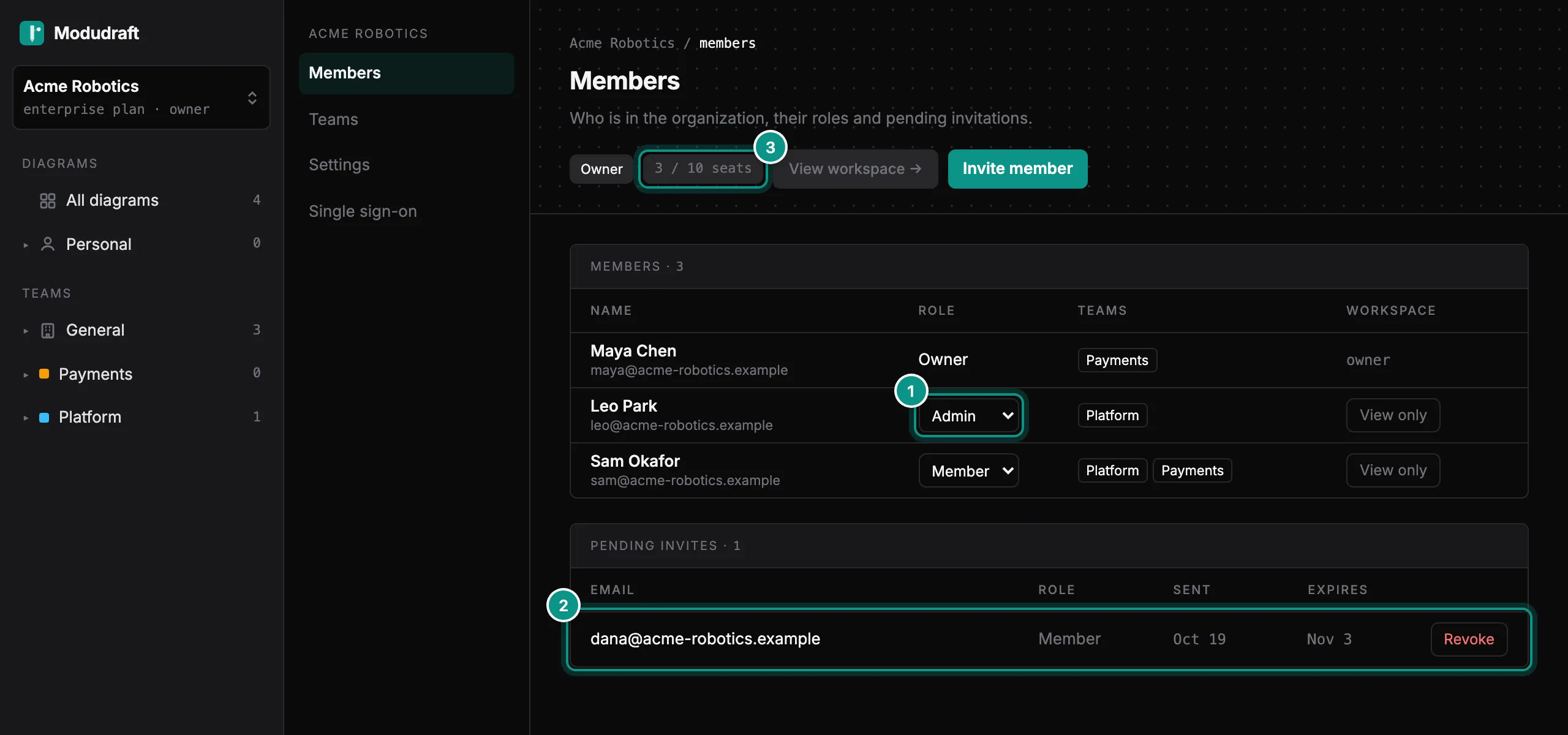
- Owner: there is one, at first the person who created the organization. The owner can do everything an admin can. Only the owner can change roles, invite or remove admins, transfer ownership and delete the organization.
- Admin: invites and removes members, creates teams, adds people to teams and edits the organization’s settings.
- Member: works in the workspaces they belong to. Members cannot invite people or change settings.
People who join start with view access to the organization’s workspace. To let someone edit it, an owner or admin clicks View only in their row, which switches it to Can edit.
Make teams
Go to Teams. Click New team (3), type a name and click Create team. Each team gets its own workspace for diagrams. A Team organization has one team, so New team is disabled once you have it, with a link to ask us about Enterprise. Enterprise has no limit.
Click a team to open it (1). Pick a member under Add member and tick Make team lead if they should lead it. A lead (2) can add people to their team. Owners and admins can make any team member a lead.
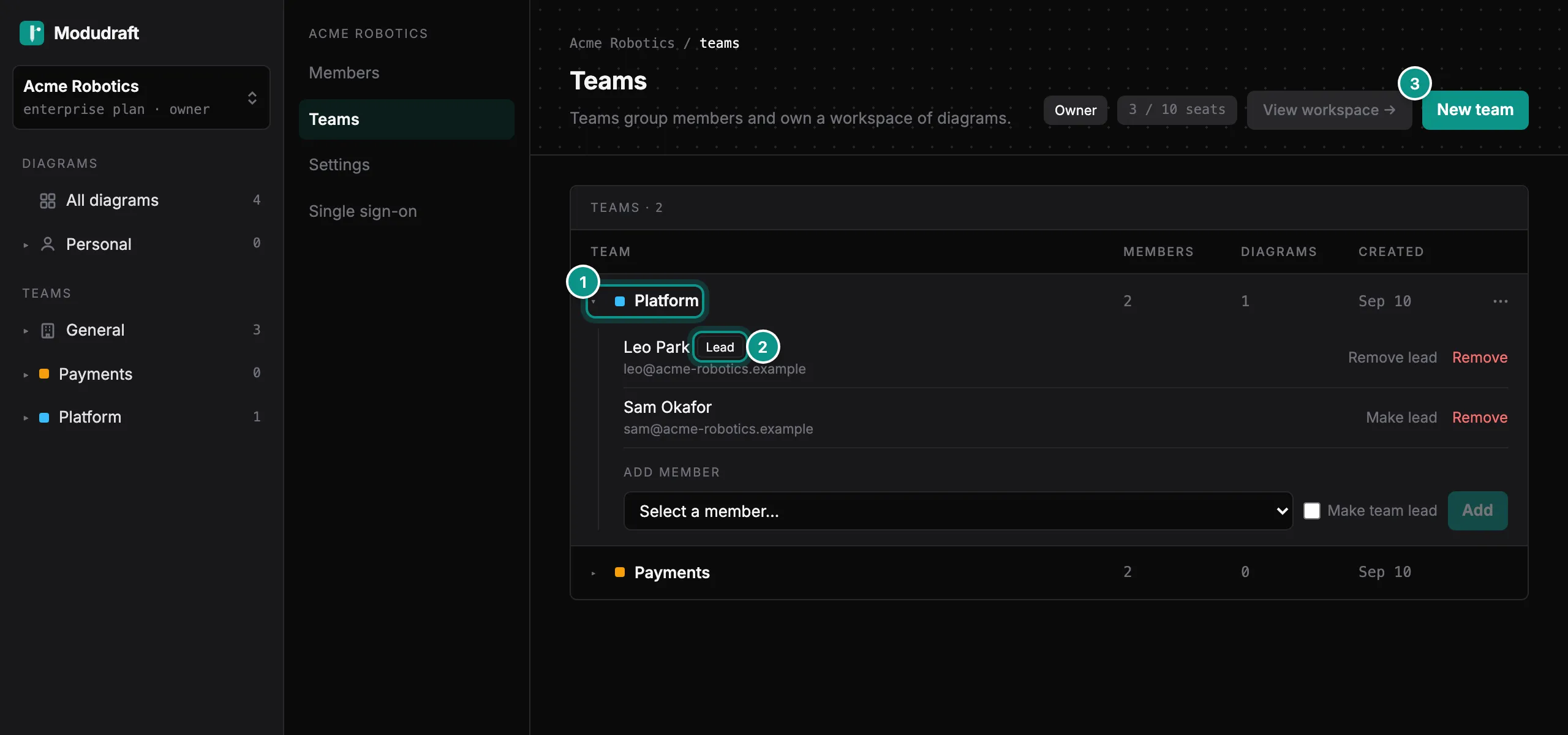
Everyone you add to a team can edit the diagrams in its workspace.
Everyone in the organization is in at least one team. People who join are added to the first team. To take someone out of their last team, add them to another team first, or remove them from the organization. The organization keeps at least one team; when you delete one, the people who were only in it move to the oldest team left.
Share diagrams
Diagrams in the organization’s workspace are visible to everyone in the organization. To let a team edit one of them, open the diagram and click Share.
Under Teams, pick the team, set the access to Edit and click Share with team. The team then shows in the list (1) with its access (2). Here, the Platform team can edit the E-commerce checkout diagram.
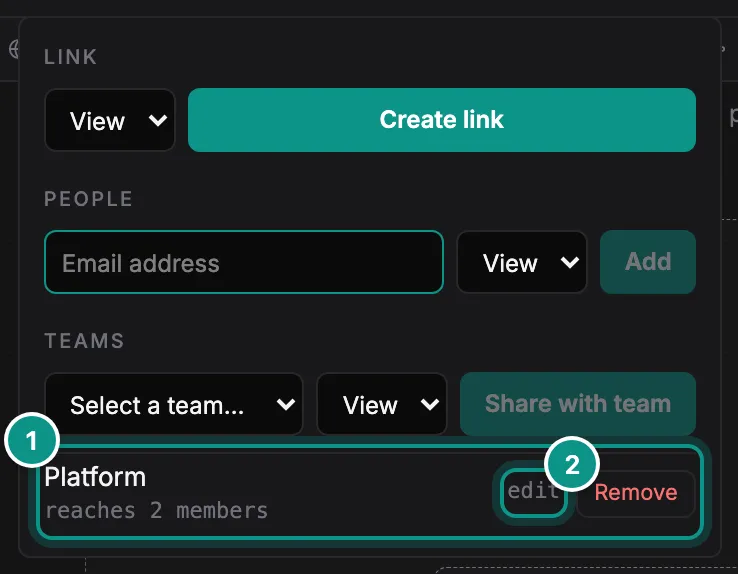
The person who created the diagram can share it, and so can the organization’s owner and admins. You can share only with people and teams in the same organization. For anyone else, use a share link.
Watch your seats
Every member of the organization takes one seat. Pending invites do not. Go to Settings to see how many seats you use (1).
To cap the organization’s size, type a number in the seat limit field (2) and click Save. Leave it empty for no limit. Once the limit is reached, you cannot invite more people until a seat frees up. The limit cannot go below the number of members you have now.

Using single sign-on? The single sign-on guide shows how to connect your identity provider.