Map your cloud resources
List the cloud resources behind each component, as a tree of what holds what.
What you'll get
- Resources linked to components
- AWS, Google Cloud and Azure resources in one view
Open the Cloud tab
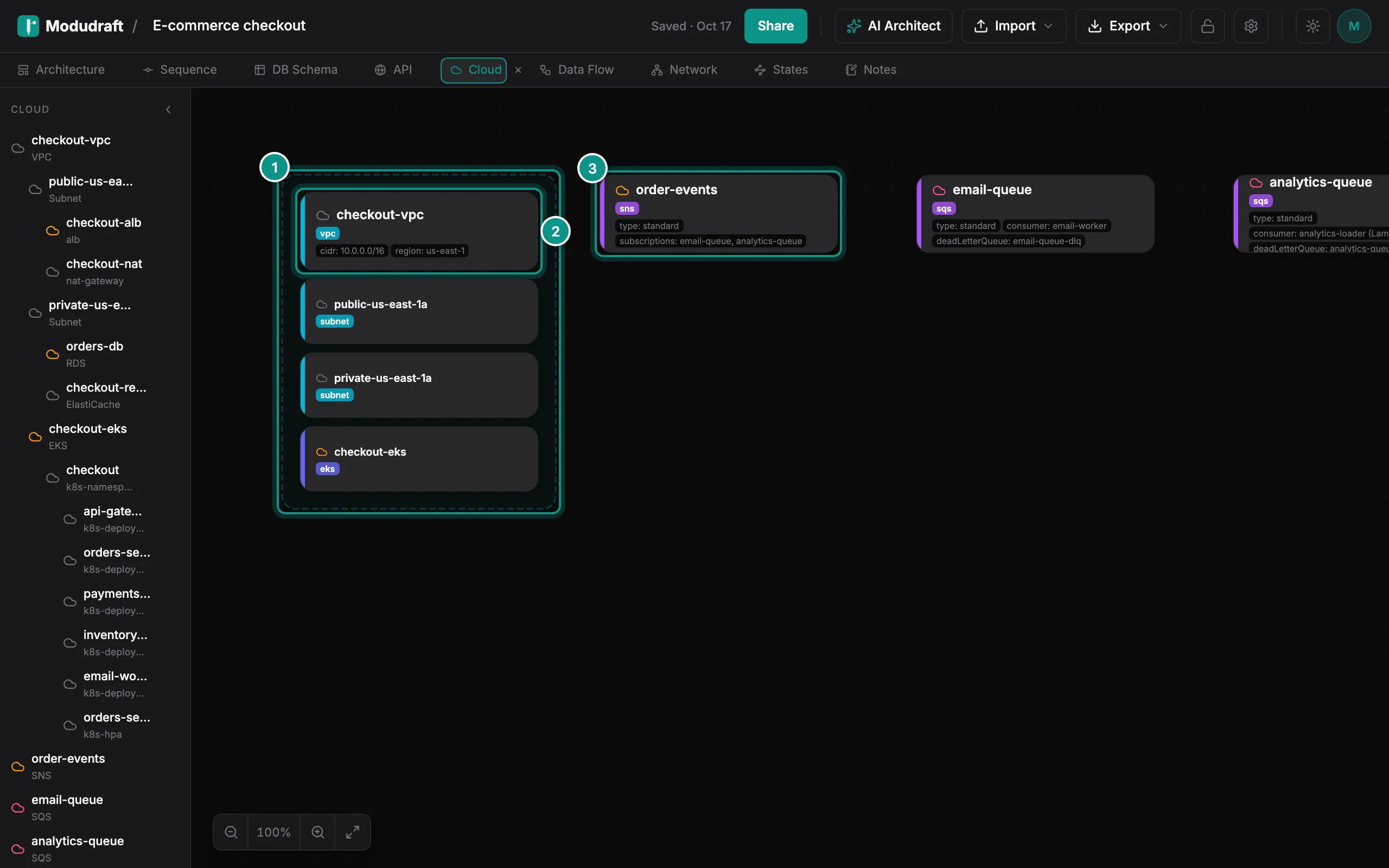
Click Cloud in the tab bar. The left panel lists every resource as a tree, with what it holds indented under it.
The canvas draws a resource that holds others as a dashed group (1). Here, the checkout-vpc VPC (2) holds two subnets and an EKS cluster, and its card shows its CIDR range and region. Resources that stand alone, such as the order-events SNS topic (3), get a card of their own.
Add resources
Click Add resource at the end of the list in the left panel. Give it a name and pick its type. The types are grouped by provider and kind: compute, network, storage, database, messaging and security on AWS, plus types for Google Cloud and Azure. You can also pick the resource it sits in, and add settings as keys and values, such as region and us-east-1.
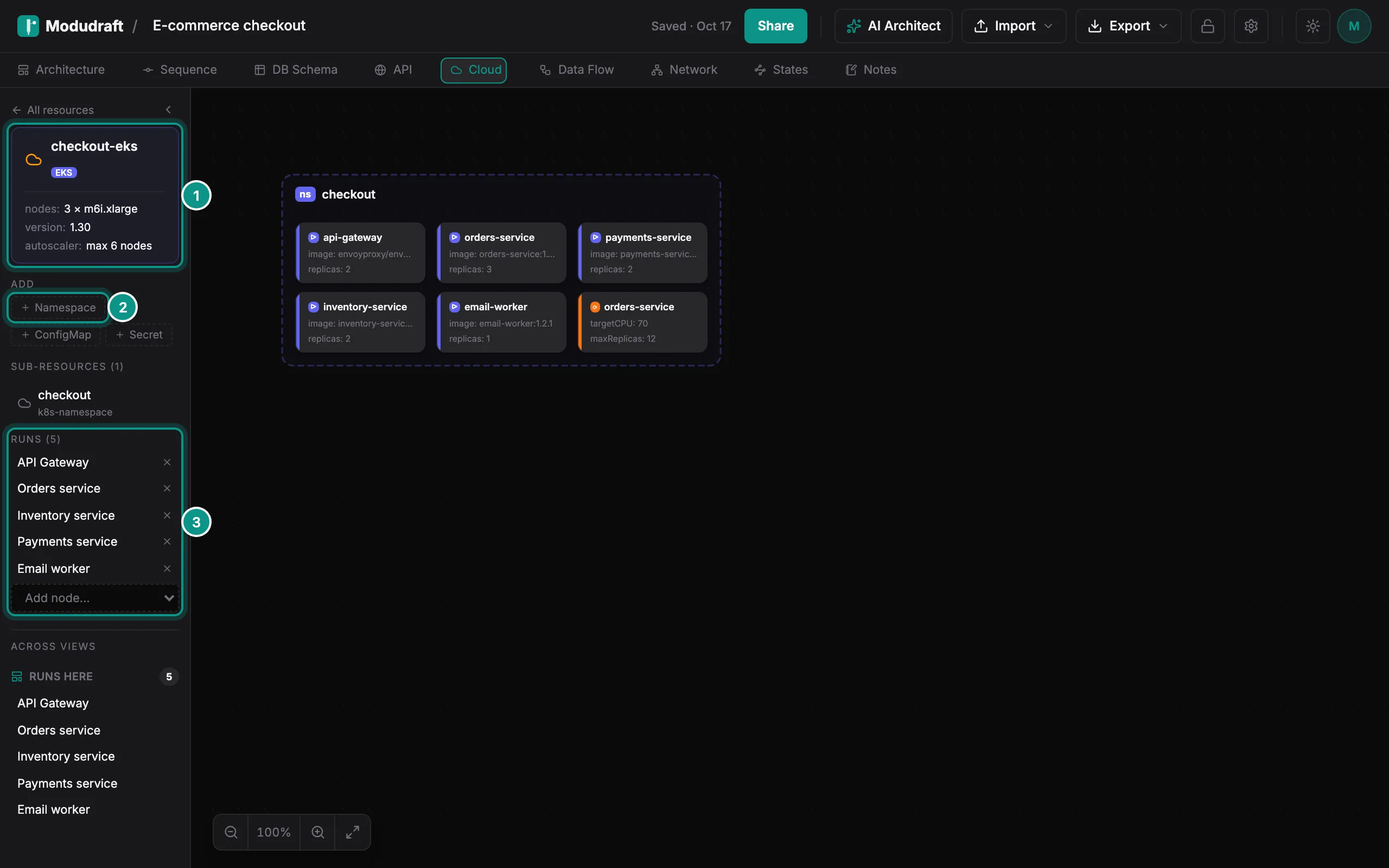
Click a resource, on the canvas or in the list, to open it. The left panel shows its settings (1), and buttons to add what can go inside it (2). An EKS cluster takes namespaces, config maps and secrets. A VPC takes subnets, security groups and gateways. A namespace takes deployments, services and more.
Edit a resource
To change a resource, point at it in the list and click its pencil. You can rename it, change its type and edit its settings. To put a resource inside another one, pick a parent when you add it, or use the add buttons on the parent resource.
Runs (3) lists the components from your Architecture tab that run on the resource. Pick one in Add node to link it. This is the same link as Runs on in the side panel of the Architecture tab, so you can set it from either side.
Your agent writes Terraform stubs from the Cloud tab, ready for you to fill in. Agents connect through the Modudraft MCP server, which comes with Pro. The agent guide shows how.
Next, follow your data from source to storage in the Data Flow guide.