Draw your network
Lay out the network your system runs on: devices, links and zones.
What you'll get
- Devices and links
- Zones and subnets
Open the Network tab
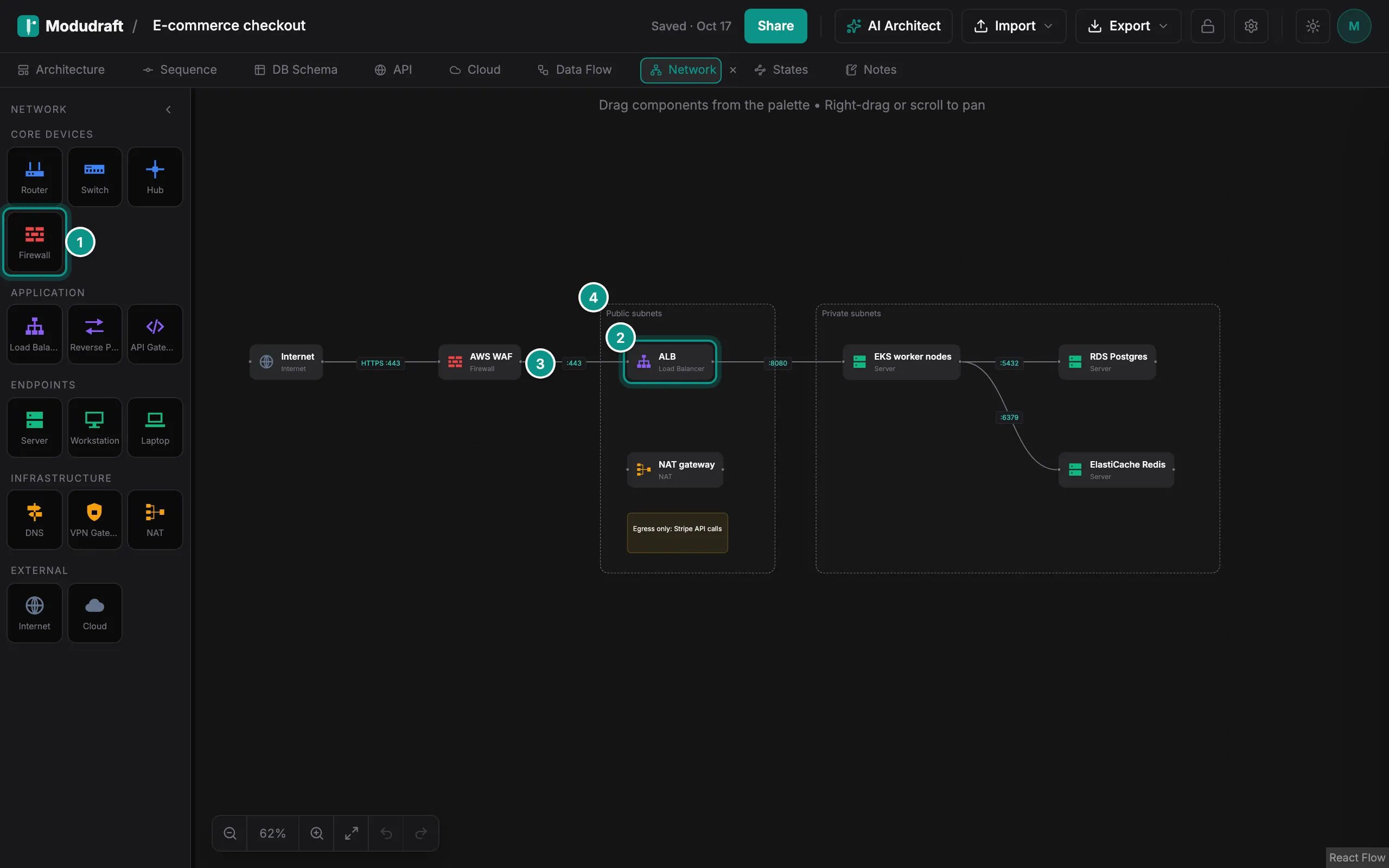
Click Network in the tab bar. The Network tab has its own canvas and its own palette of devices, grouped as core devices, application, endpoints, infrastructure and external.
Add devices and links
Click a device in the palette, such as Firewall (1), to add it, or drag it onto the canvas. Each device shows its name and type, such as the ALB load balancer (2).
To link two devices, drag from a dot on the edge of one to the other. Click a link to label it, for example with the port it uses (3), or pick a protocol.
To draw a zone, such as a subnet, right-click an empty spot on the canvas and choose Add boundary. Resize it around its devices (4). Click it to rename it.
Edit a device
Click a device to open it in the side panel. The top shows its name and type (1). Change the type under Device type (2). Add your own details under Custom properties (3), such as an IP range or an instance size: type a key and a value, then click Add property.
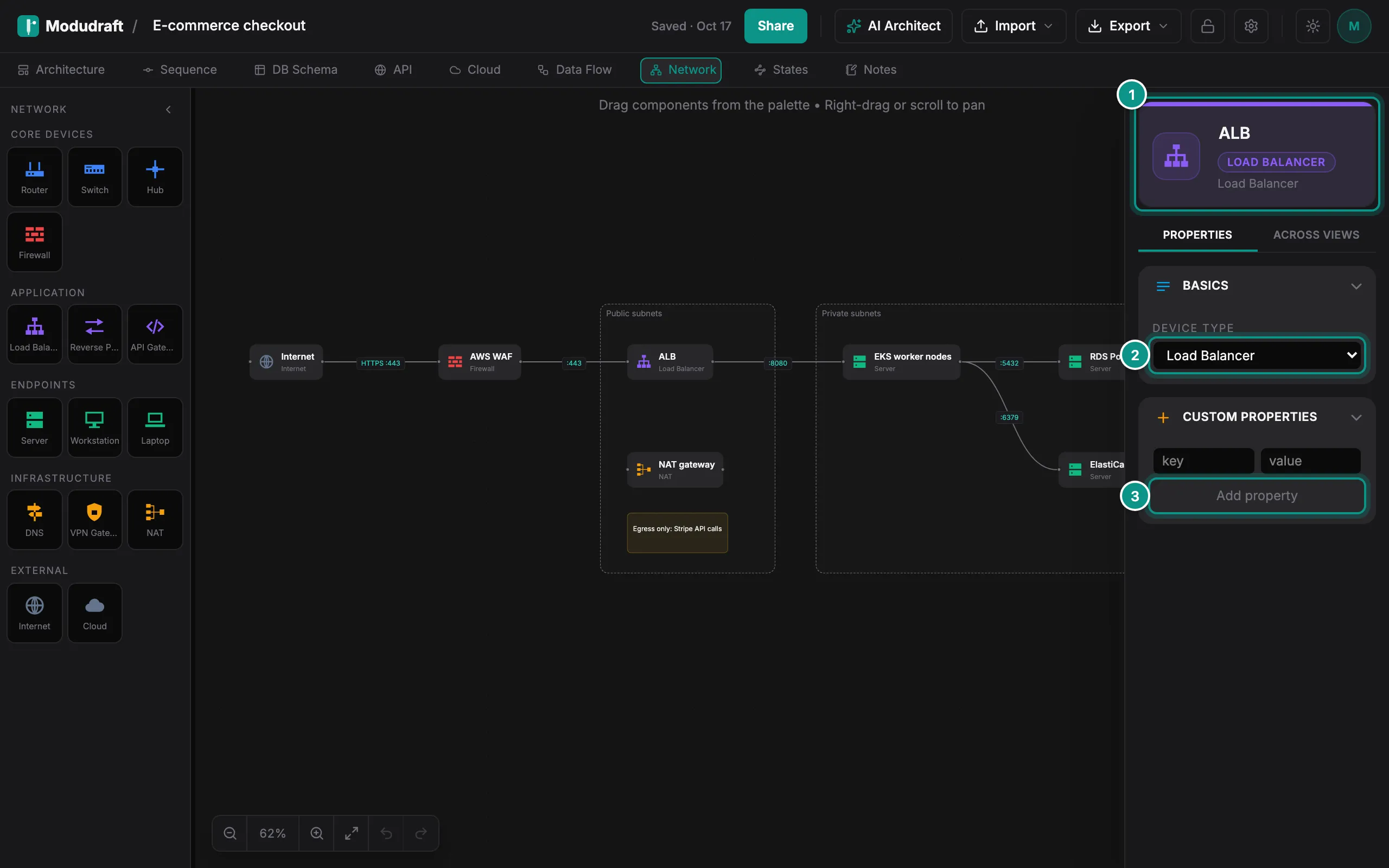
The Across views tab shows where the device appears in the other tabs.
Next, keep your decisions next to the diagram in the Notes guide.