Build a threat model
Mark trust zones and the data your arrows carry, let Modudraft suggest threats, decide what to do about each, and share the report.
What you'll get
- Trust zones and data classes on your diagram
- Threats with a severity, a status and an owner
- A report to share
Turn on the Security view
The threat model lives on the Architecture tab, in the same file as the diagram. This guide uses the Web shop threat model, a finished example.
Press Security view (1) in the canvas controls. Each zoned boundary shows its trust zone (2). Each arrow shows the class of data it carries and a lock: closed when it is encrypted, open when it is not. The red dashed arrow (3) carries credentials without encryption from one zone into another. A badge on a component counts its open threats (4), coloured by the worst one. A green tick means every threat on it is handled.
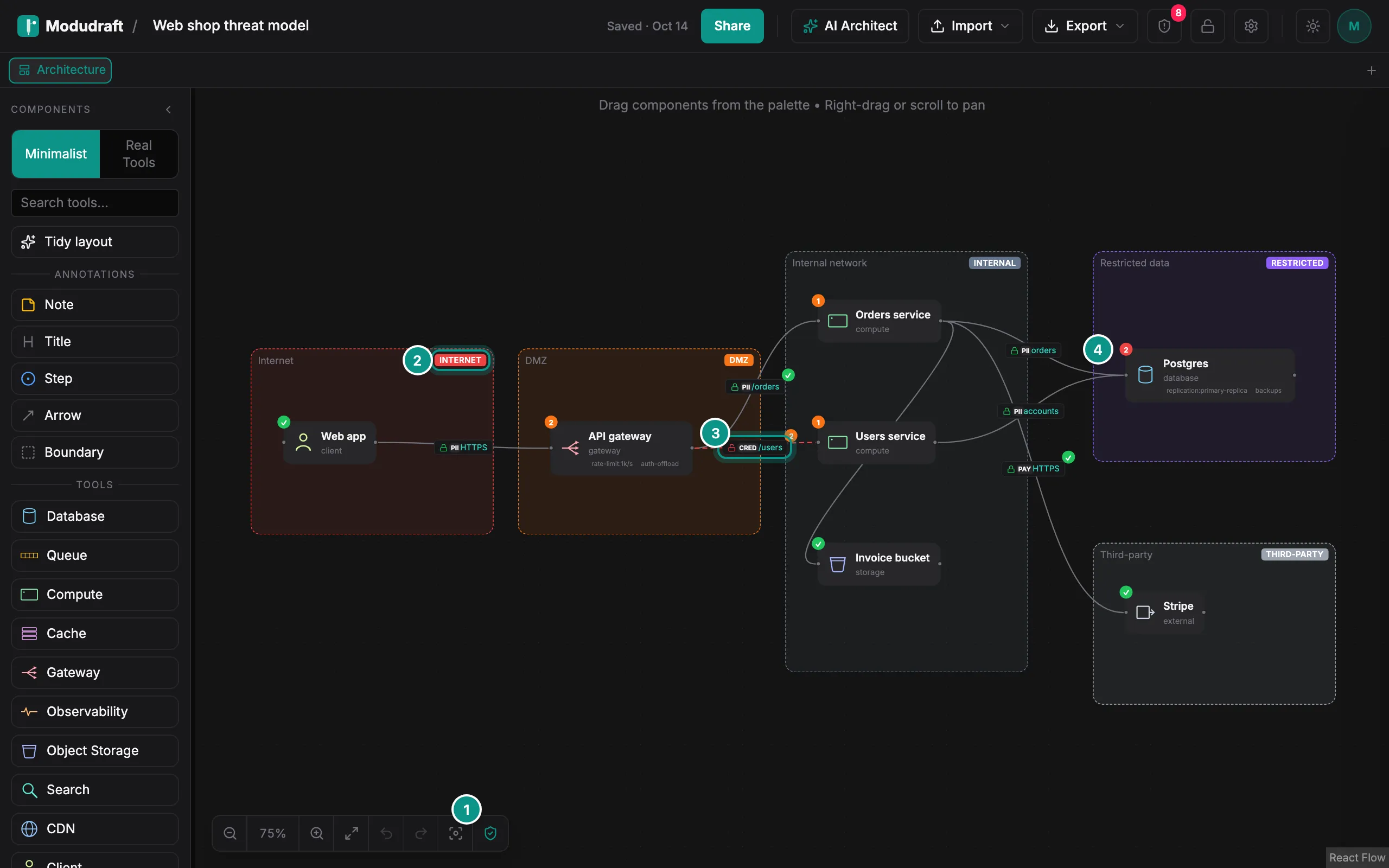
People with view access see the Security view and the threats too, but they cannot change anything.
Mark zones and data
A trust zone says how far you trust what runs inside it. Draw a boundary around the parts that share a zone and select it (1). In the Security card of the side panel, pick its Trust zone (2): Internet, DMZ, Internal, Restricted or Third-party.
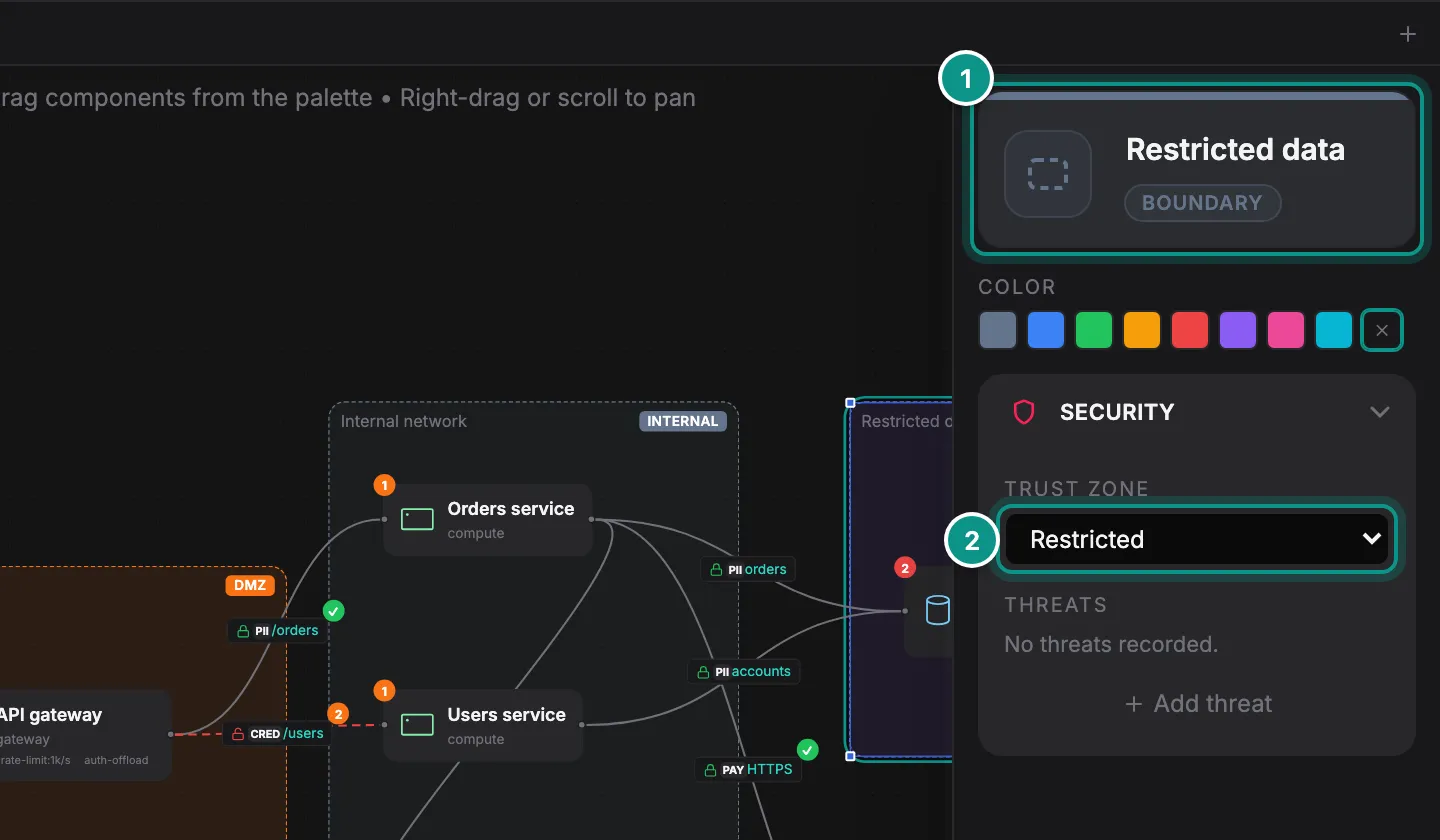
A component takes the zone of the smallest zoned boundary it sits in. One with no zone counts as Internal, or as Internet when it is a client or an external service. An arrow from one zone to another crosses a trust boundary, and most suggested threats come from there.
Next, say what kind of data moves and where it rests. Select a data store such as Invoice bucket (1). Its Security card shows the zone it falls in, then Data class (2) and Encrypted at rest (3), then its threats. The classes are Public, Internal, PII, Credentials and Payment. PII, credentials and payment count as sensitive. An arrow has a data class too, and Encrypted. Leave Encrypted unset and it follows the arrow’s protocol: HTTPS is encrypted, HTTP is not.
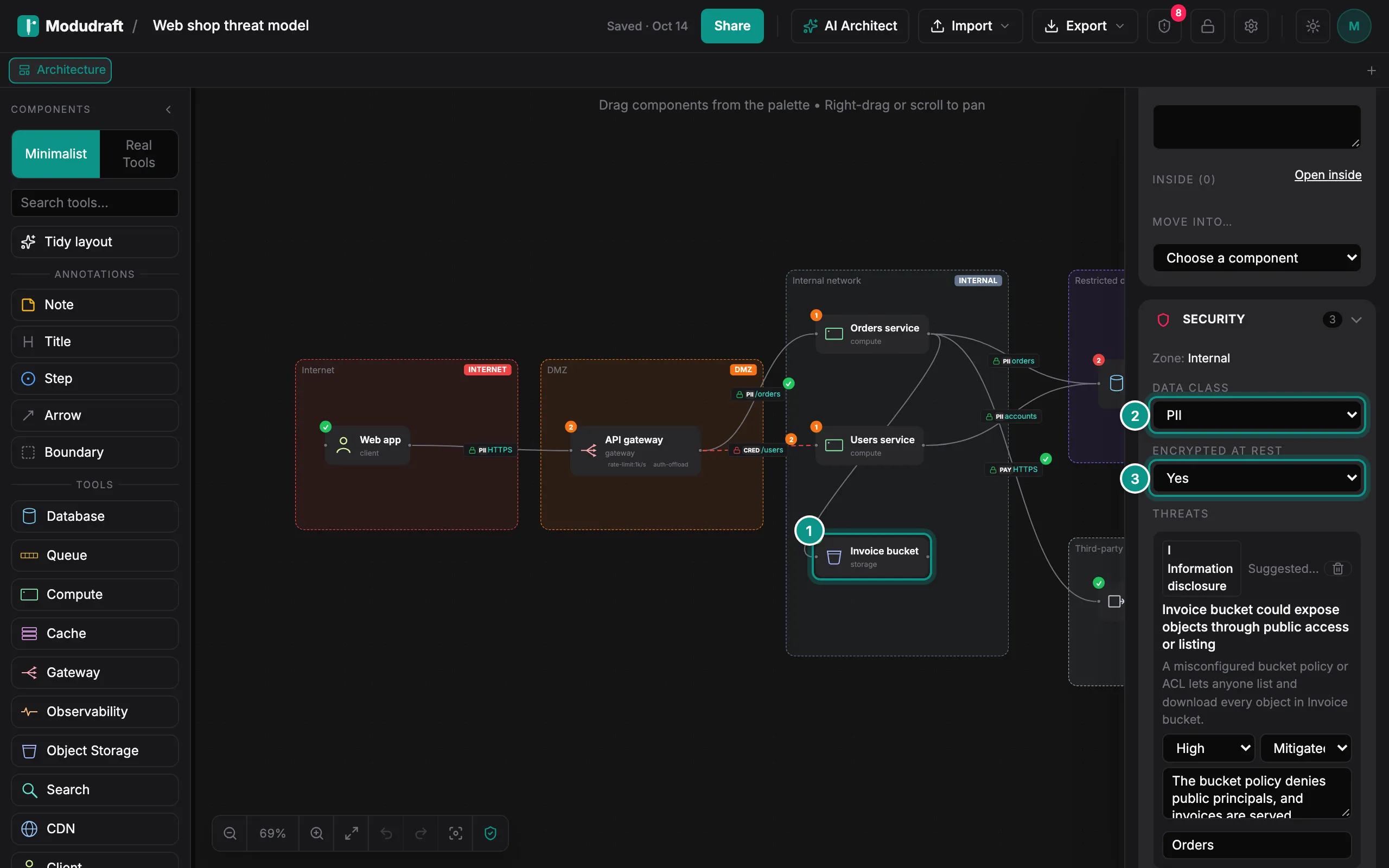
You do not have to fill in everything. An unset value counts as unknown, and the suggestions point out where unknown matters.
Suggest threats
Click Threats in the toolbar to open the list. Then click Suggest threats (1). Here it runs on the E-commerce checkout diagram, which has no threats yet. Modudraft reads the diagram and adds new suggestions (2), each with a STRIDE category, a severity, a description and a mitigation. The same diagram always gives the same suggestions.
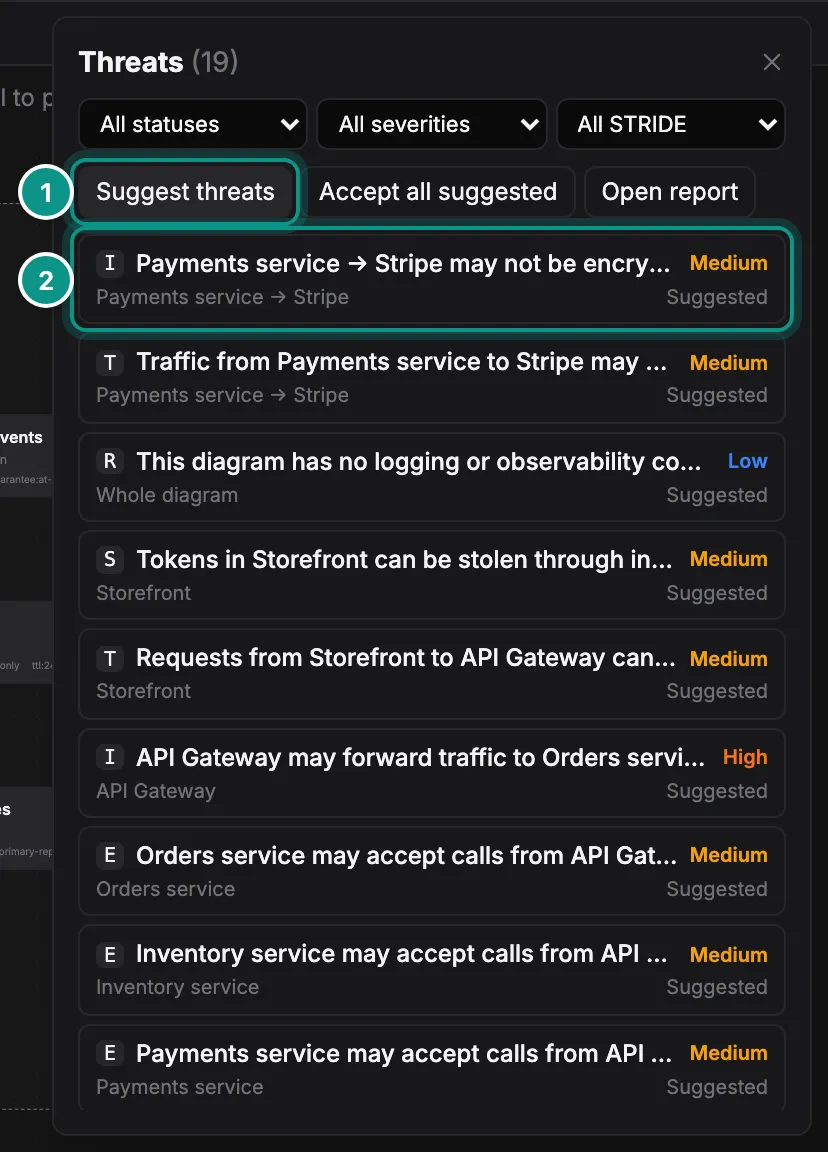
Some suggestions come from the shape of the diagram, such as an unencrypted arrow that crosses a zone or sensitive data sent to a third party. Others are the usual weak spots of each kind of component, such as a gateway with no rate limit or a database with no backups. Modudraft does not know which product you run, and it does not track CVEs.
Accept all suggested, next to it, turns every suggestion into an open threat. It asks first.
Your agent runs the same rules, then adds threats that are specific to your tools, such as a Kong route with no rate-limiting plugin. Agents connect through the MCP server, which comes with Pro. The agent guide shows how.
Review and decide
Filter the list by status (1), severity or STRIDE category. Here it shows the open threats. Each row has its STRIDE letter, title, severity, target and status (2). The count on the Threats button (3) is the number of open and suggested threats.
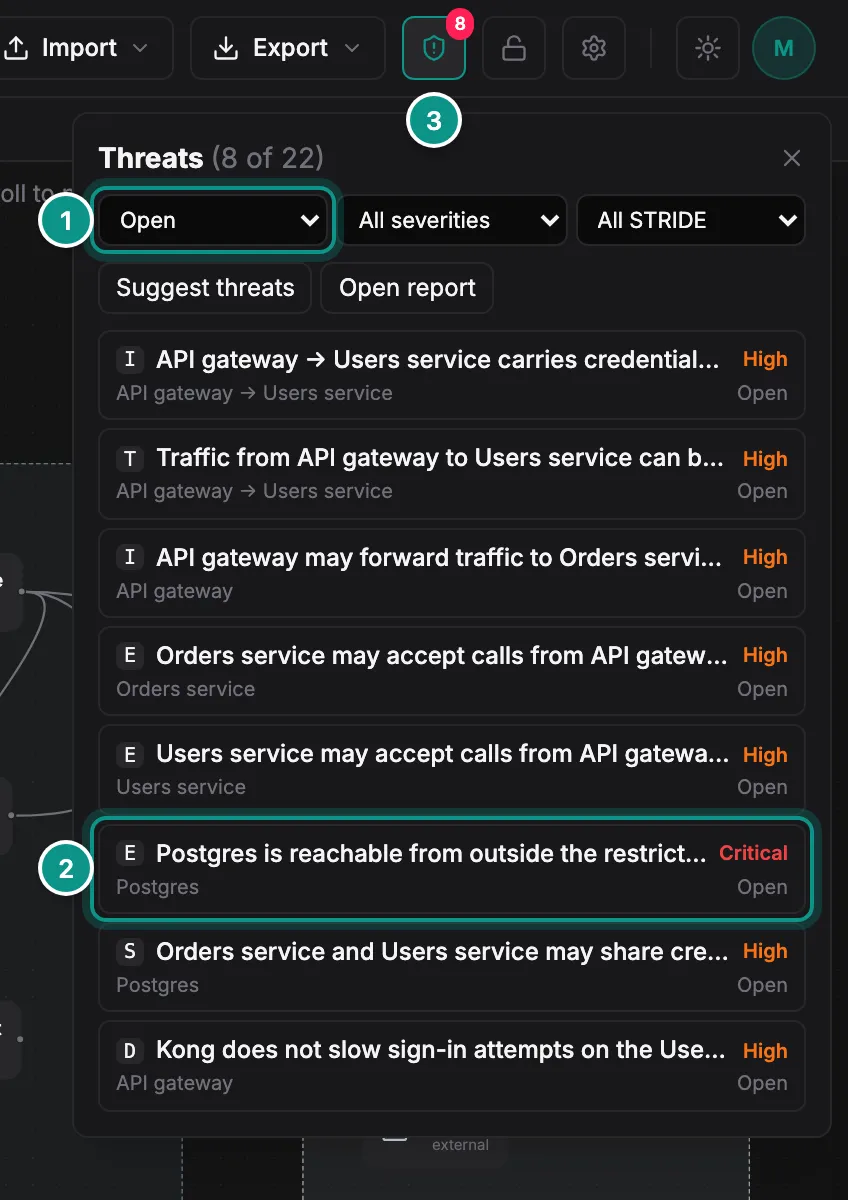
Click a threat to select and zoom to what it is about. In the side panel, its Security card lists that item’s threats. There you set each one’s severity, status, mitigation and owner, or add your own with Add threat.
- Open: a real threat you still have to deal with.
- Mitigated: you fixed it. Say how in the mitigation.
- Accepted: you know about it and decided to live with it.
- Not applicable: it does not apply here. Mark a suggestion this way instead of deleting it: Suggest threats never brings it back.
Running Suggest threats again never adds a threat twice and never changes one you edited.
Share the report
Click Open report in the Threats panel. The report is a page anyone who can view the diagram can open, including people with a view link. Print / Save as PDF (1) prints it on A4, dark text on white. It opens with a summary: open threats, how many are mitigated, and bars of threats by severity and status. Then comes the system diagram with its trust zones (2).
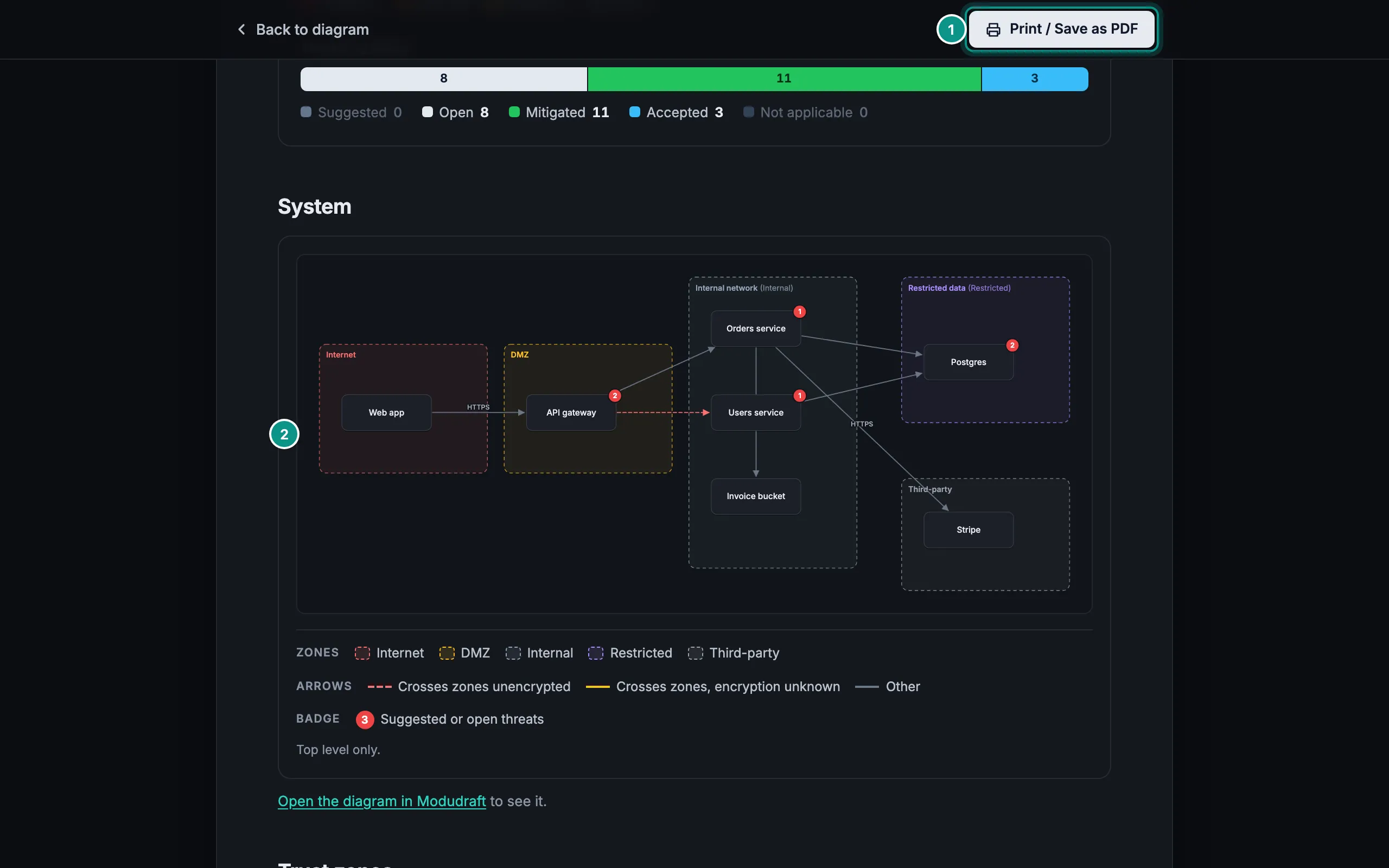
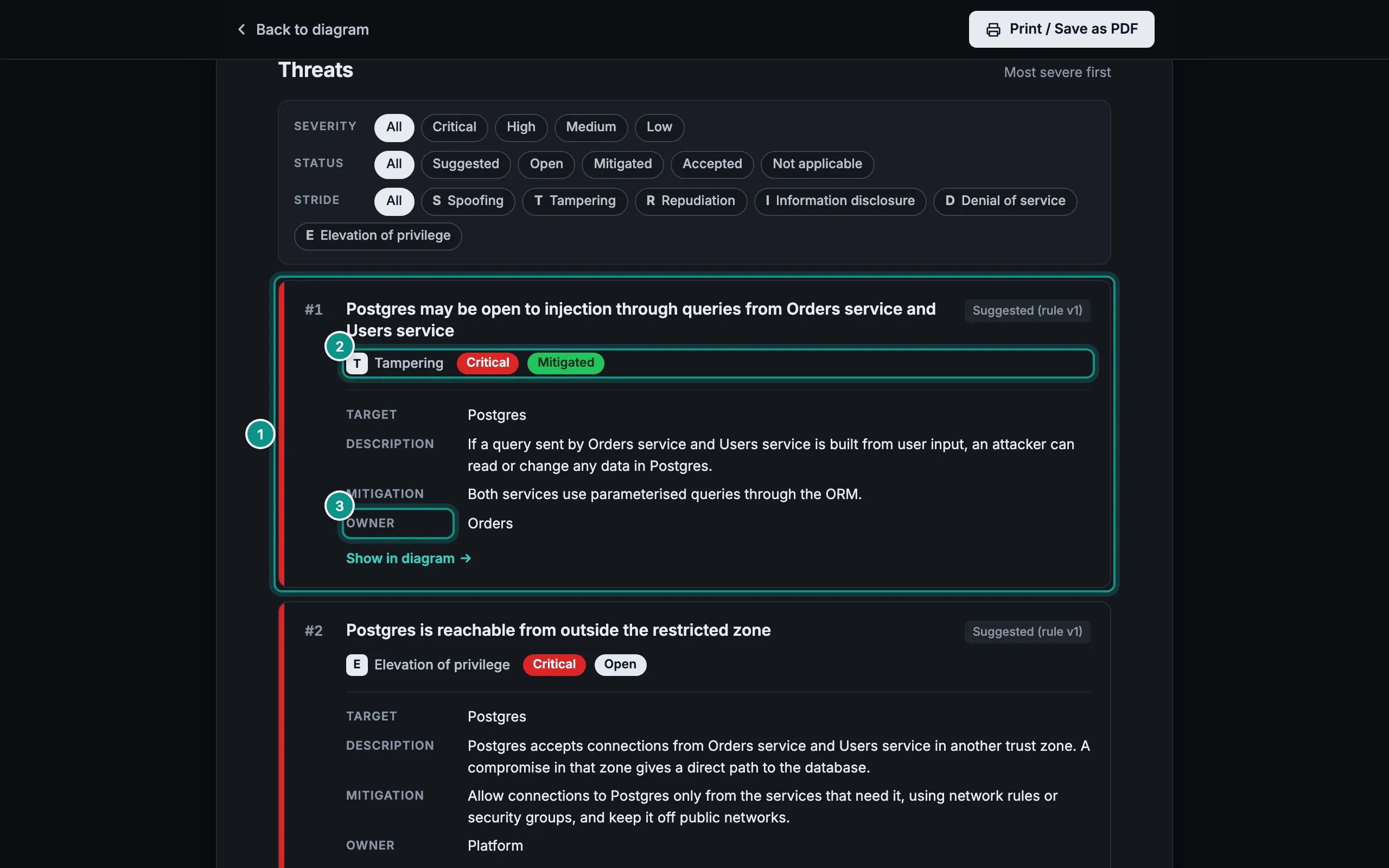
Below come the components in each zone, the data flows grouped by class, and the data stores. Then the threats, one card each and most severe first: each threat (1) with its STRIDE category, severity and status (2), target, mitigation and owner (3). It ends with the method, the owners and the diagram version.
For Markdown, open Export in the toolbar and choose Threat model (.md). It has the same content as the page.