Your first diagram
Sign up, start a diagram from a template or a file, find your way around the tabs and share a link.
What you'll get
- A free Modudraft account
- A diagram you can edit, on the web and on your phone
- A view link anyone can open
Sign up
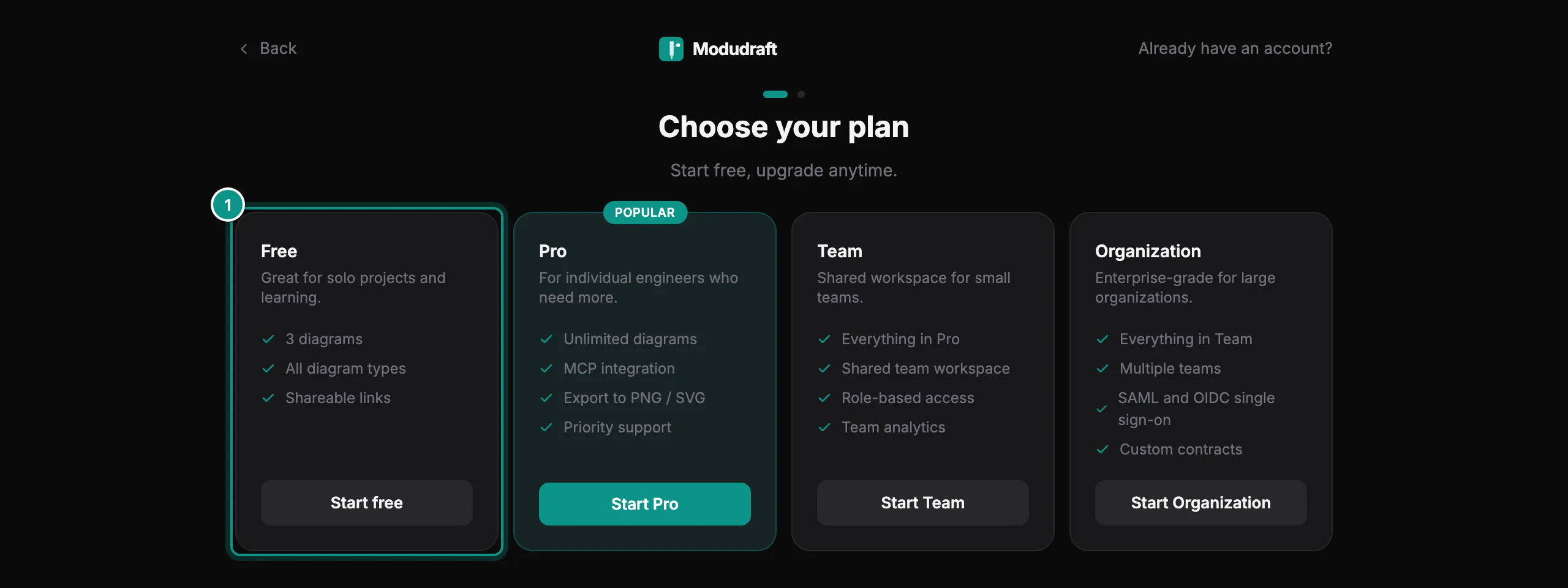
Open app.modudraft.com/signup and choose a plan. This guide uses Free (1). Pro adds unlimited diagrams and the MCP integration. Team adds a shared team workspace, and Enterprise adds several teams and single sign-on. Team and Enterprise are set up with us: their cards say Contact us and email us.
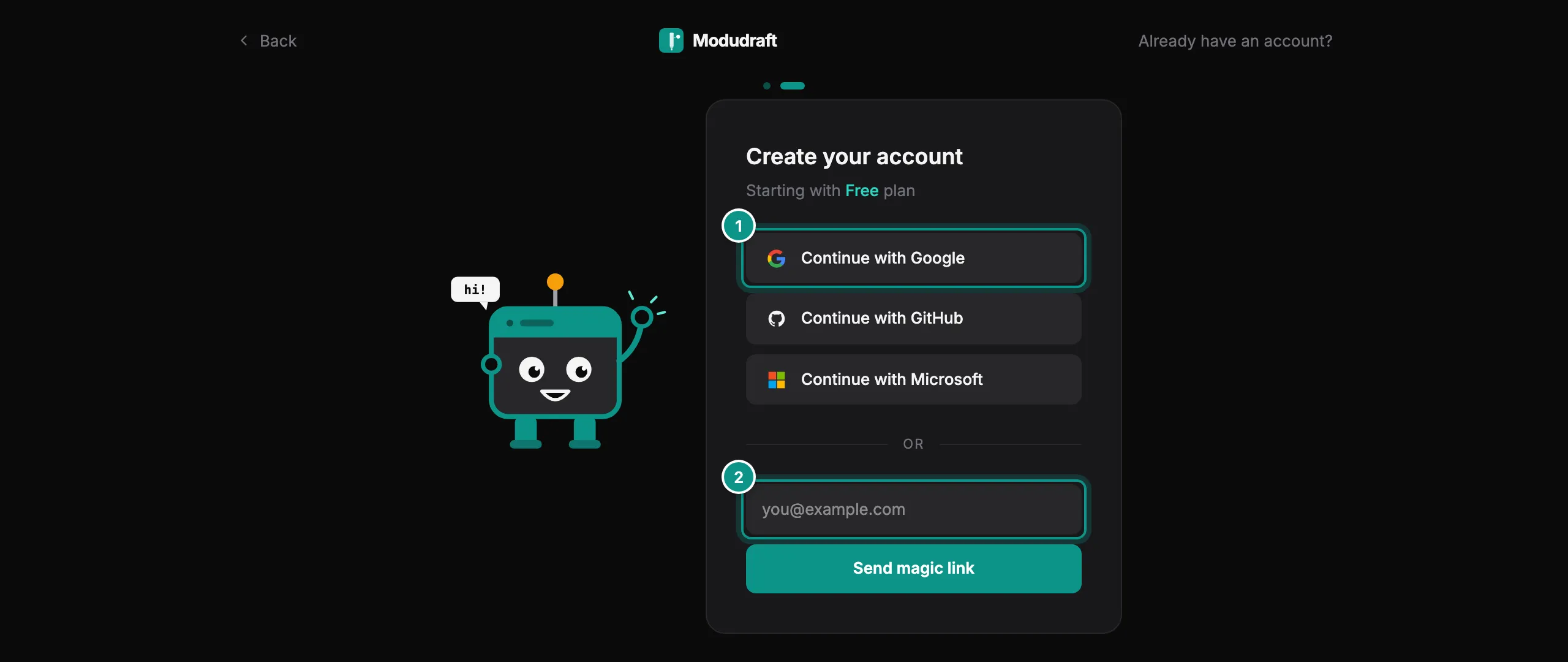
Next, create your account. Continue with Google, GitHub or Microsoft (1), or type your email (2) and we send you a magic link.
Open your dashboard
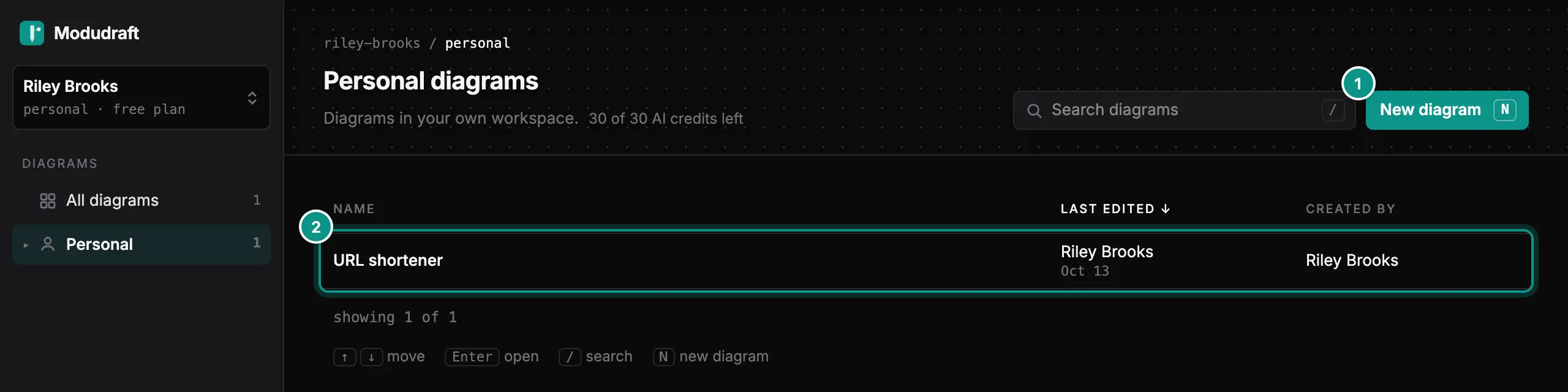
After you sign in you land on your dashboard. Your personal workspace lists every diagram you own, with who last edited it and when.
Click New diagram (1) to start one, or open a diagram from the list (2). The keyboard works too: N starts a diagram, / searches, and Enter opens the selected row.
Start from a template
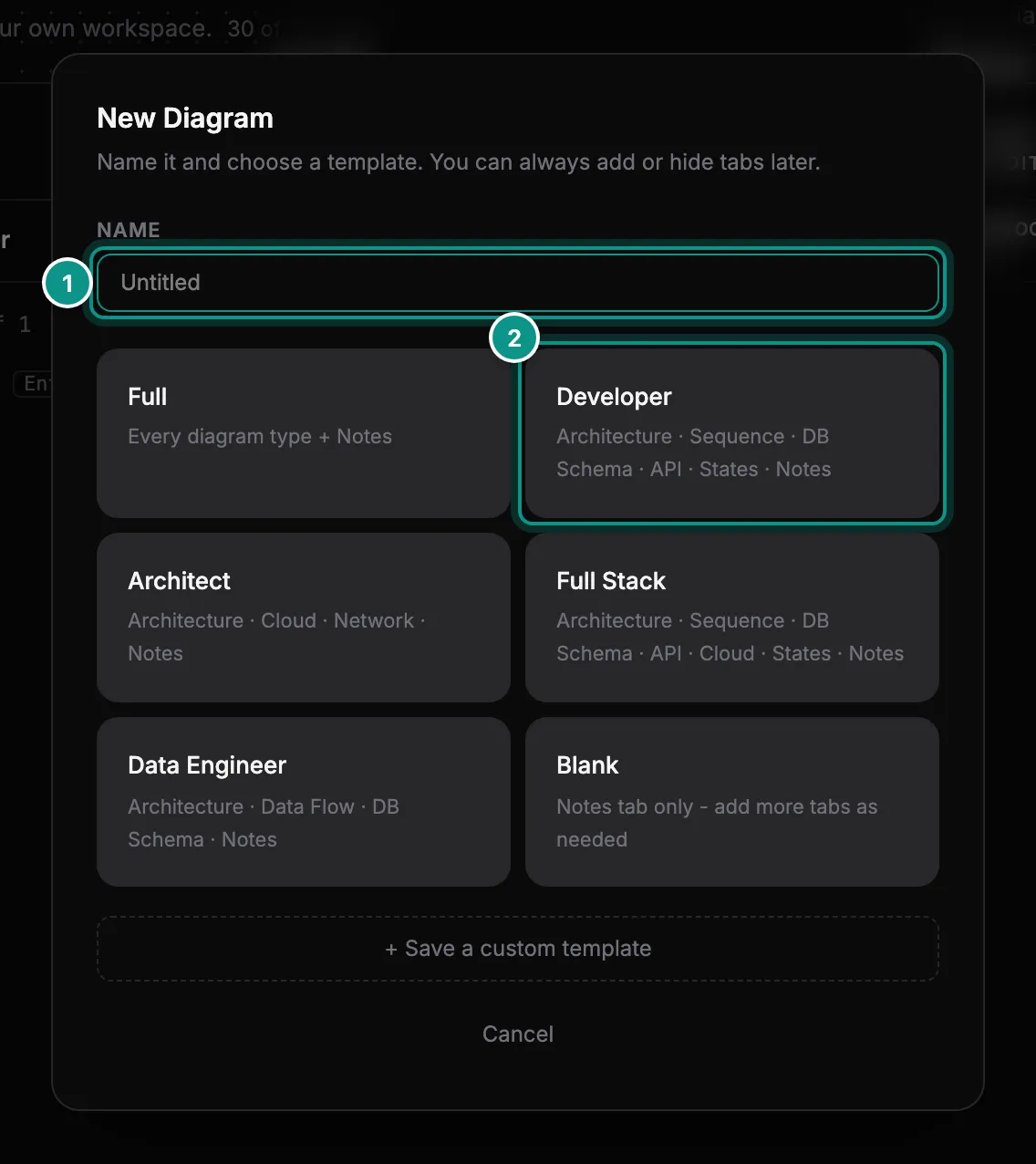
Give the diagram a name (1), then click a template. Each template opens with its own set of tabs. Developer (2), for example, opens Architecture, Sequence, DB Schema, API, States and Notes. Full opens every tab.
You are not locked in. You can add or hide tabs later, and the dialog says so.
Bring a diagram you already have
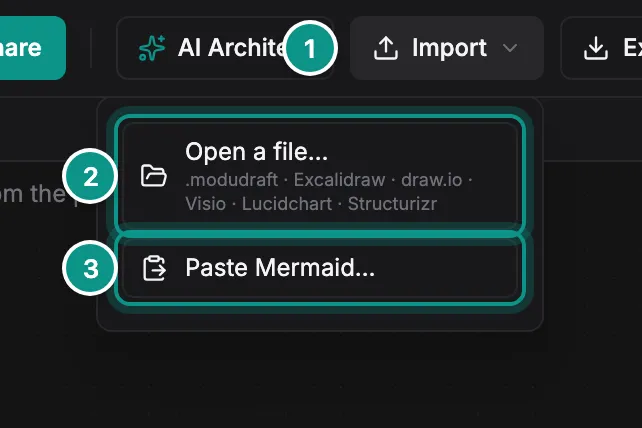
In the editor, open Import (1) in the toolbar. Open a file… (2) opens a .modudraft file or a diagram exported from Excalidraw, draw.io, Visio, Lucidchart or Structurizr. Paste Mermaid… (3) takes a Mermaid flowchart that you paste in or pick as a file.
Have code but no diagram yet? Your AI agent can draw it for you through the Modudraft MCP server, which comes with Pro.
The agent guide shows how to connect your agent.
Find your way around
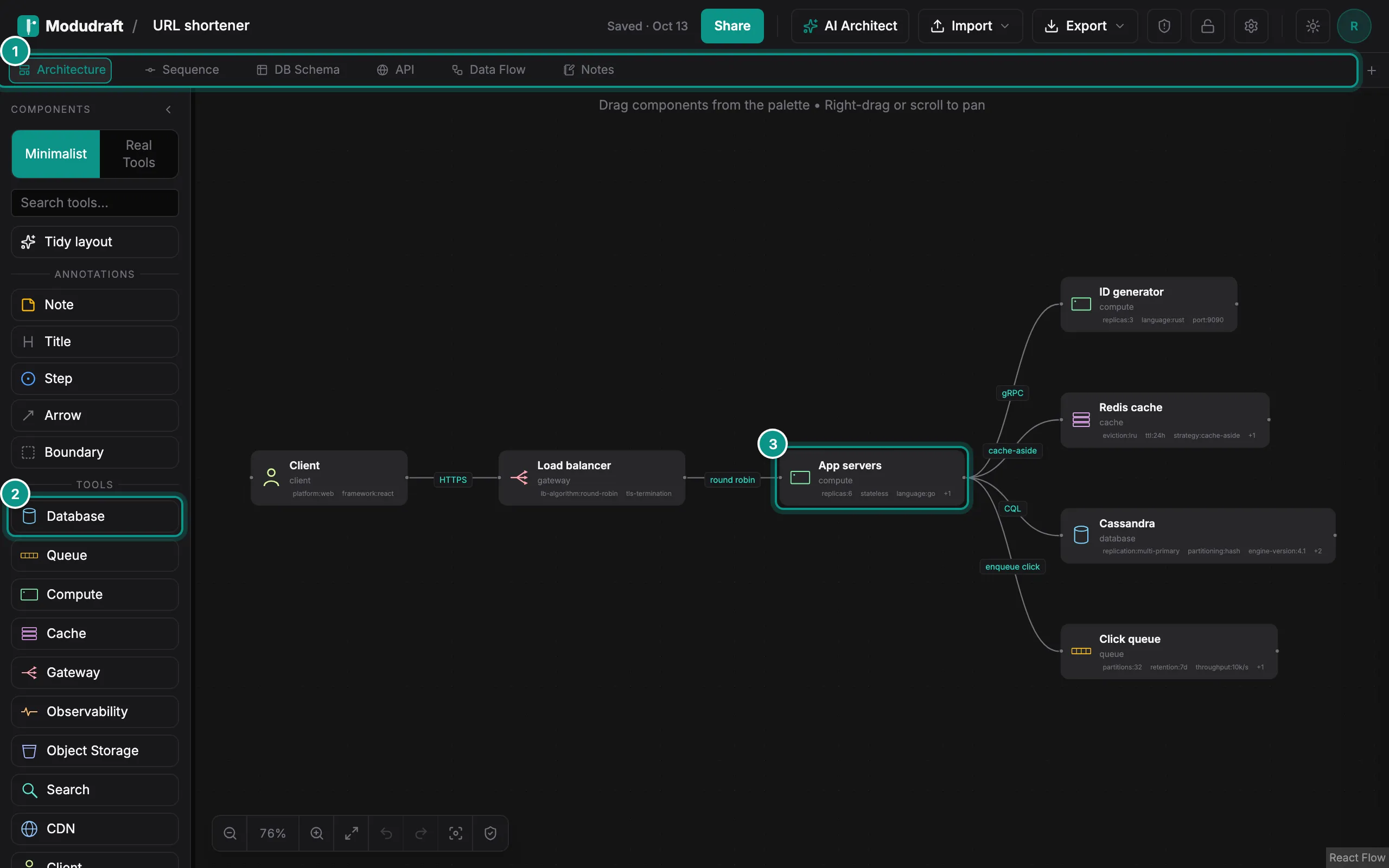
The tabs at the top (1) switch between views of the same diagram: Architecture, Sequence, DB Schema, API, Cloud, Data Flow, Network, States and Notes. Only the tabs your template turned on show. Use + at the end of the row to add another.
The palette on the left holds the building blocks, such as Database (2). Drag one onto the canvas to add it. Click a component on the canvas (3) to select it and edit its name, its tool and its details.
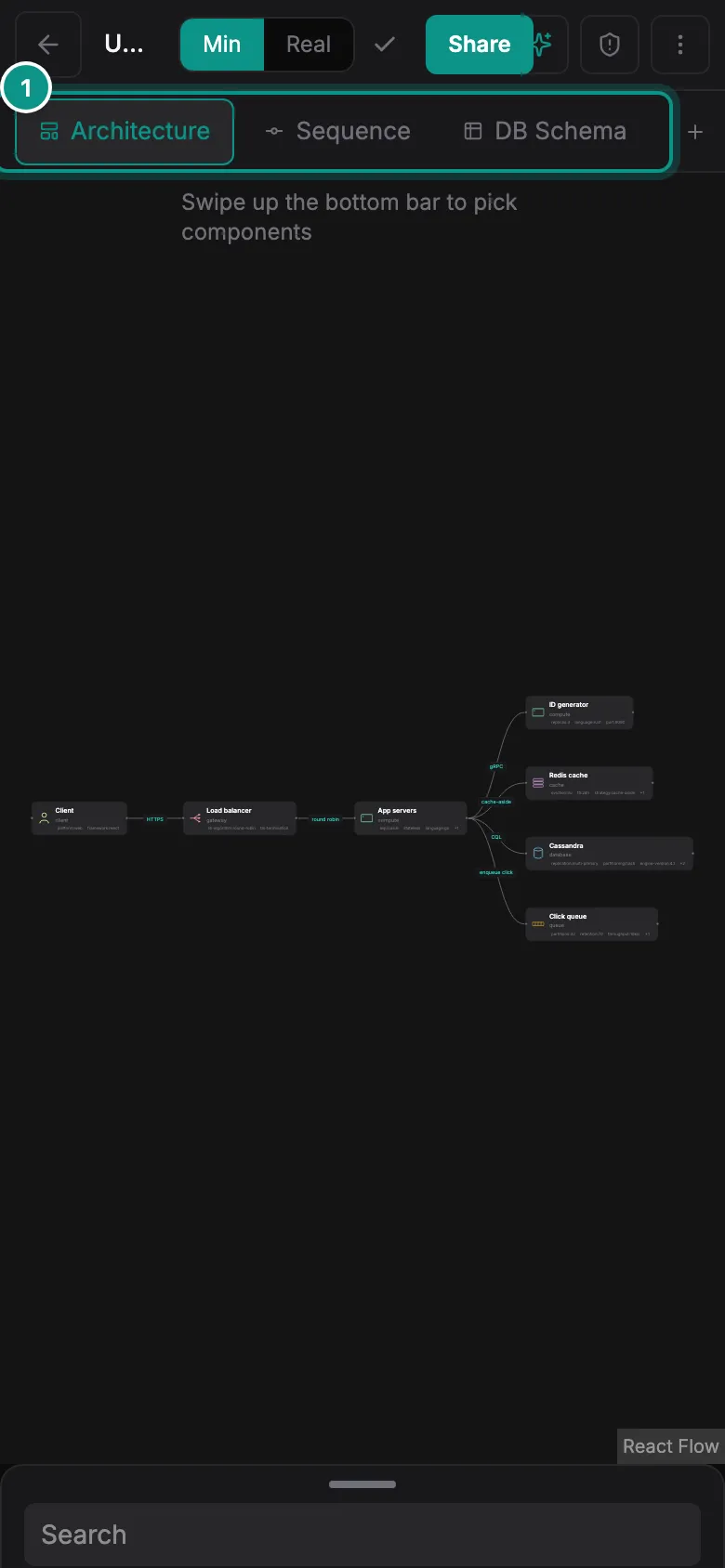
The same diagram opens on your phone. The tabs sit under the top bar, and the bottom bar holds the palette: swipe it up to pick components.
Share it
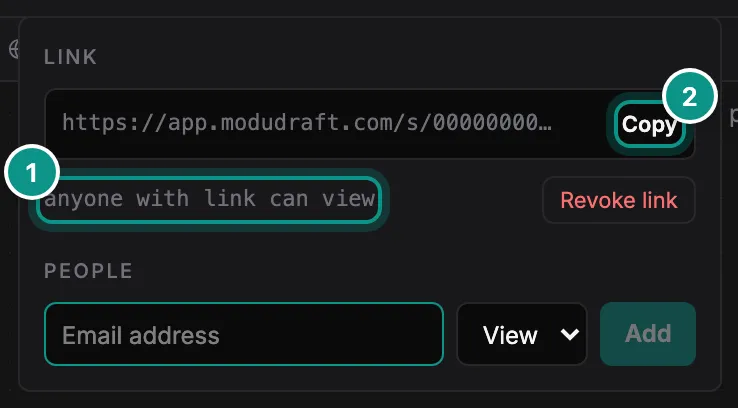
Click Share in the toolbar. If the diagram has a link, the panel shows who can use it (1). Here, anyone with the link can view. Copy (2) puts the link on your clipboard.
To make an edit link instead, click Revoke link, set the dropdown next to Create link to Edit and click Create link. You can also add people by email.
Each tab has its own guide. Start with the Architecture guide.